Deliver the work and complete the project
Confirm the recipient has the agreed output, finish the related tasks and update the project separately.
Part of Deliver and close a customer project
In this lesson
Deliver the work and complete the project
A project is complete when its agreed result has been delivered and accepted—not just when files have been uploaded.
Confirm the delivery
1. Open the project and review its scope and completion criteria. Identify the final output versions and intended recipient. 2. Provide the exact outputs through your team’s agreed delivery route. Check that the recipient can read the complete material. 3. Ask the recipient to check the agreed criteria and record either acceptance or the specific changes needed. Keep the decision with the delivery task, for example in Comments using the send arrow. 4. If a required file cannot be opened or a criterion remains unmet, keep the delivery work open and agree the next action.
Complete the tasks and project
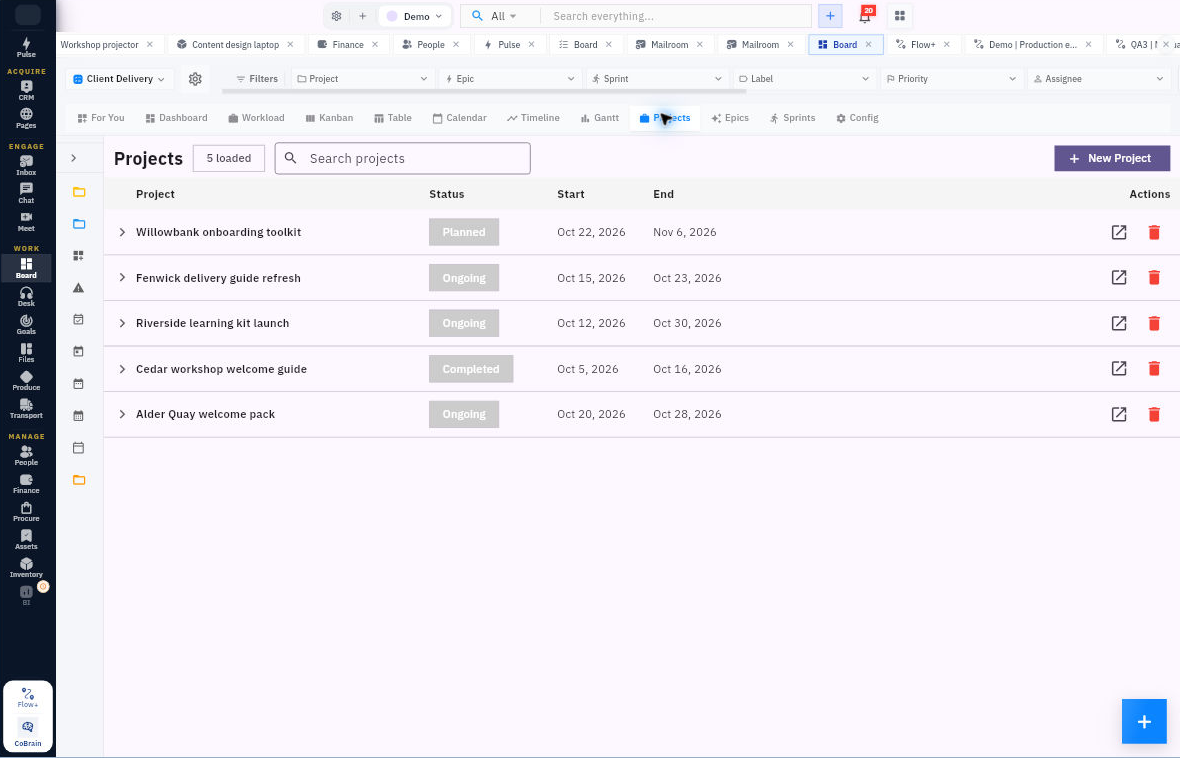
5. For each task whose own result is complete, set Done and select Update Task. Reopen the task to check the saved state. 6. Return to Projects and expand the project. Check the intended task set and any open obligations before completing the project.
Check the result
7. Open the project. When its full completion criteria are met, select Completed and use Update Project. 8. Leave and reopen the project. Check its full name, status and task list, and confirm the delivery decision remains readable on the relevant task.
Expected result: the project is Completed only after the required delivery and acceptance checks have passed.
Remember: task, project and sprint states are separate. Do not assume finishing the tasks automatically completes the project, or that completing the project changes the tasks. A sent message or attached filename alone does not confirm the recipient accepted the output.
Continue learning
In this series: Plan and deliver work — guide 16 of 17.
Turn what you learned into the way the team works.
Mark this lesson complete once the workflow exists in your workspace—not simply when you reach the bottom.