BI course 01 — Navigating BI and checking reporting readiness
BI organizes analysis spaces, dashboards and reporting work. A saved dashboard is not necessarily a populated report. This course teaches the actual available screens, a reproducible reporting method and a separate demonstrated Finance report comparison. Where BI datasets are not ready, it does not invent chart, query, publish or access outcomes.
Part of BI module course: Spaces and reporting readiness
In this lesson
BI navigation and reporting readiness
BI organizes analysis spaces, dashboards and reporting work. A saved dashboard is not necessarily a populated report. This course teaches the actual available screens, a reproducible reporting method and a separate demonstrated Finance report comparison. Where BI datasets are not ready, it does not invent chart, query, publish or access outcomes.
In this chapter
- Start with a question and a decision
- Find the correct space and dashboard
- Understand the configuration forms
- Check the readiness chain
Start with a question and a decision
Before opening a builder, state what the reader needs to decide. “Which practice items still need review before Friday?” is more useful than “make a dashboard.” It identifies a population, a deadline and a next action.
A source record contains the underlying fact. A dataset presents structured records for analysis. A dashboard contains reporting content. A widget is one element on that dashboard. A KPI is a measure selected to inform an important decision; a large number is not meaningful merely because it is prominent.
For this course, use a small fictional review register. Items A, B and C belong to the same practice pack. A has an accepted review with evidence; B needs changes; C has no review. The first useful answer is which items are ready and what remains, not how many events appear in a log.
Find the correct space and dashboard
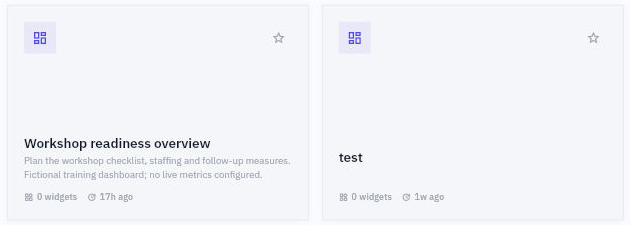
Open BI from the application rail and keep Explore selected. Read Switch BI Space before interpreting the content. The training example is Riverside workshop planning, containing Workshop readiness overview. Do not use another dashboard merely because its name looks familiar.
The inspected Overview displayed Last 30 days, no KPIs and a dashboard card with 0 widgets. Open the exact card and read its title, description and state. Its detail was Draft with Widgets 0 and a description saying no live metrics were configured.
Studio boundaries and space preparation
Use Edit to inspect Studio when that is your permitted task. The observed Studio showed the same title, Saved and a blank Page 1, with Report, Data, Model, Save, Publish and Recover draft controls. Saved describes the shell's state; it does not prove a usable dataset or successful calculation.
Understand the configuration forms
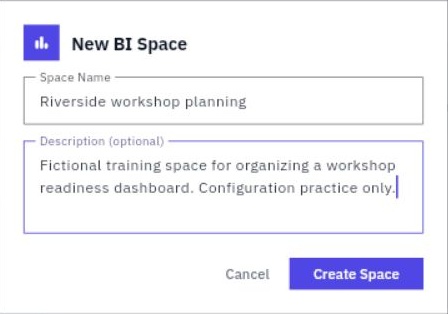
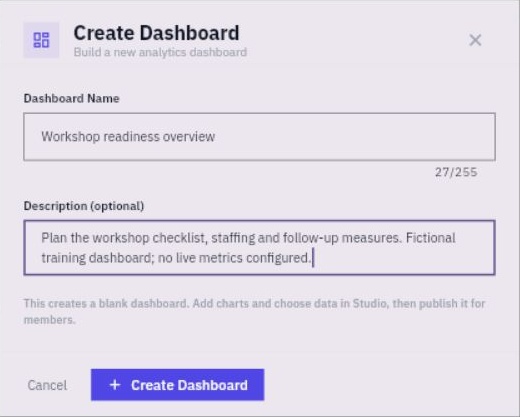
The demonstrated configuration route is BI > Explore > Switch BI Space > Create New Space. New BI Space asks for Space Name and optional Description, followed by Create Space. Under Dashboards, New Dashboard opens Dashboard Name and optional Description with Create Dashboard.
Saved shell readback and reporting boundaries
If an approved shell already exists, reuse and inspect it instead of creating another. For separately authorized creation, save once and independently reopen the space and dashboard to compare the full names and description. A timeout is a reason to inspect for the intended record before retrying.
Check the readiness chain
| Readiness layer | Question to answer |
|---|---|
| Business | Are the decision and measure agreed? |
| Source | Is there an authoritative record and owner? |
| Access | Can the intended analyst read the required data within scope? |
| Dataset | Are the actual fields and rows available? |
| Report | Can the calculation be reconciled and displayed? |
| Audience | Can the approved viewer see the intended content? |
Visible catalog entries were marked Not ready in the inspected Studio. A historical Tasks catalog showed zero fields/rows and a preview error. Neither observation proves that the workroom has no tasks. The label alone does not establish the cause of unavailable data; the responsible owner must resolve the missing readiness prerequisite.
Do not repeatedly Save, Publish, Recover draft or preview unavailable data to manufacture apparent readiness. Record the exact unavailable layer and ask the responsible owner for its supported resolution. You can still prepare and check the analytical definition in the following chapters without claiming a native report was built.
Turn what you learned into the way the team works.
Mark this lesson complete once the workflow exists in your workspace—not simply when you reach the bottom.