Transfer an asset to a new custodian
Follow the transfer stages and check the new assignment’s terms instead of assuming they inherit.
In this lesson
Transfer an asset to a new custodian
Before transferring, agree the exact asset, destination custodian, accessories and return obligation. If a temporary return deadline must continue, confirm a supported way to preserve it before requesting the transfer. Do not assume the old date or custody type will carry forward.
Request and progress the transfer
1. Open Assets → Custody → Transfers and check for an existing transfer. If the intended transfer exists, resume only from its verified current stage; skip request creation and do not replay completed actions. 2. Select New Transfer. Choose Asset with active custody, the correct Destination type and exact Destination. Enter the actual Reason. 3. Compare the source assignment and agreed terms. Select Request transfer once, then reopen the exact row and check Requested. 4. The responsible approver uses Approve on the Requested transfer. Check Approved. 5. Record the authorised handover stage with Dispatch and check In transit. Reconcile the old assignment separately; do not assume it stays Active until receipt. 6. The responsible destination follows the receipt process and uses Confirm receipt. Check Received and the new assignment before selecting Complete on that transfer.
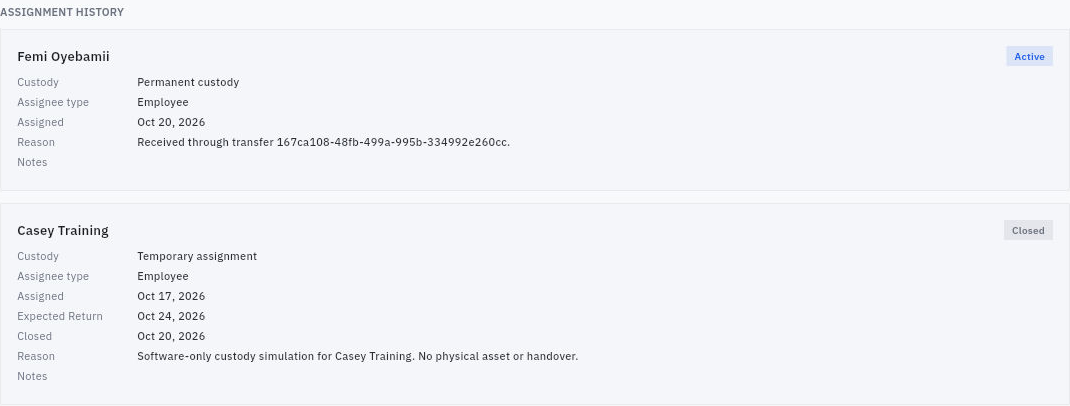
Check the result
Verify custody and due obligations
7. Reopen the Completed transfer, then open Register → the asset → Assignment. Read both the old and new history cards. 8. Check the new custodian, custody type, assigned date and any Expected Return line. A deadline on the closed old assignment does not establish a deadline on the new one. 9. Compare Summary and Placement with the assignment. Resolve a mismatch with the asset coordinator rather than creating another request or editing the master speculatively. 10. Use Custody → Assignments → Overdue Returns to find recorded overdue work, but also check the exact agreement and assignment dates. An empty filter is not proof of physical return.
Expected result: the transfer and new assignment are reconciled, with any missing deadline or placement term explicitly unresolved.
Remember: Completed transfer is not a completed return. The asset can remain in use with the new custodian. Record acknowledgment only through the responsible recipient process, not on someone else’s behalf merely to advance the status.
Continue learning
In this series: Manage asset custody — guide 5 of 15.
Turn what you learned into the way the team works.
Mark this lesson complete once the workflow exists in your workspace—not simply when you reach the bottom.