Review and accept an asset registration
Check the pending candidate against its sources, then verify the assigned asset record after acceptance.
In this lesson
Review and accept an asset registration
Registration review confirms the record is ready to enter the asset register. It is separate from a later custody handover or financial review.
Review the candidate
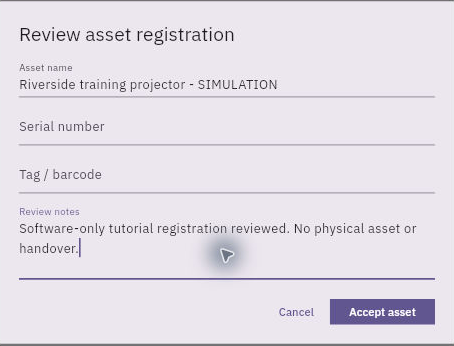
1. Open Assets → Register → Registration Review and find the exact pending candidate. Compare its name, serial/tag, acquisition source and available details. 2. Review the source documents, cost/currency, condition and placement before accepting. The compact acceptance dialog does not show every field, so do not use a familiar name as the whole review. 3. Select Review & accept on the correct candidate. Check Asset name, Serial number and Tag / barcode. 4. Enter truthful Review notes describing the decision and any relevant limits. Resolve an identifier conflict with the responsible owner instead of changing a serial just to match another record. 5. When the complete review supports acceptance, select Accept asset once.
Check the result
Verify the accepted record
6. Return to All Assets and open the matching asset. Check its assigned asset number, identity, acquisition information and placement. The queue becoming empty is not enough to identify the accepted record. 7. Read Summary states individually and inspect Financial separately. Accepted registration does not mean financial review, depreciation or payment is complete. 8. Check Assignment and Activity for the relevant history. Keep any missing review-note retention or inconsistent field visible for the responsible owner.
Expected result: one accepted asset with a verified system-assigned number and a clear handoff for any remaining finance or custody work.
If the result is uncertain: search both Registration Review and All Assets before repeating acceptance or submitting again. If the review finds a duplicate or rejection issue, use your organisation’s supported disposition process; do not select a queue action merely to make the row disappear.
Continue learning
In this series: Manage asset custody — guide 3 of 15.
Turn what you learned into the way the team works.
Mark this lesson complete once the workflow exists in your workspace—not simply when you reach the bottom.