Assets course 04 — Preventive schedules inspections verification and incidents
A preventive plan schedules future work. An inspection records a check. Physical verification confirms an asset within a defined campaign. An incident describes an observed or reported event. Keep these records separate so that a future date is not mistaken for completed care.
Part of Assets module course
In this lesson
Scheduled work and inspection evidence
A preventive plan schedules future work. An inspection records a check. Physical verification confirms an asset within a defined campaign. An incident describes an observed or reported event. Keep these records separate so that a future date is not mistaken for completed care.
In this chapter
- Define a recurring plan for the right asset
- Use general inspections for their own scope
- Freeze the physical-verification population
- Report an incident factually
- Apply a practical readiness test
Define a recurring plan for the right asset
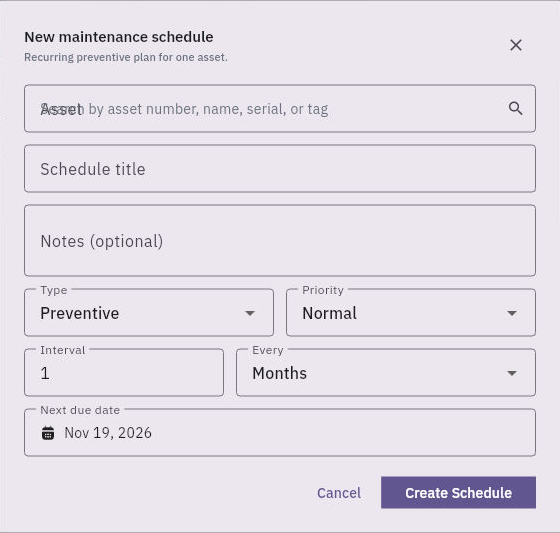
Open Care → Maintenance → Schedules → New Schedule. New maintenance schedule has Asset, Schedule title, optional Notes, Type, Priority, Interval, Every and Next due date. The untouched form can show Preventive, Normal, interval 1 and Months.
Inspections campaigns and incident follow-through
Maintenance schedule separates interval number, interval unit and next due date from a performed occurrence.
Every offers Days, Weeks and Months. A fortnightly plan can be represented as two Weeks or fourteen Days under the approved convention, not one Month. The next-due control is date-only; preserve any exact clock deadline in the approved supporting instructions. The form does not expose separate checklist, assignee, reviewer, file or time-of-day fields, so do not claim those were assigned structurally.
After an authorised Create Schedule, find the same asset/title and compare cadence, due date and actual state. Pause is an action, not a way to inspect an overdue obligation. A saved Active schedule does not prove an occurrence was performed, a reminder delivered, recurrence advanced or a work order generated.
Use general inspections for their own scope
Care → Inspections is distinct from a maintenance request with Type Inspection and from return-specific custody inspection. Match the exact asset, inspection reference, date, status, notes and completed checks. A Closed record whose checks only confirm a QA label and software-only scope cannot be described as a physical safety inspection.
New Template → New Inspection Template has Template name, Description and Required checks (one per line). Write each complete criterion, not an inaccessible filename or vague “test passed.” For a camera, identity/serial, accessory count, casing condition and an approved functional test can be separate criteria, but the technical content must come from the responsible specialist's approved instructions.
Before using a newly authorised template, reopen its saved title, description and every required check. A blank form inspection does not prove template retention or validation. Do not choose a similar template without checking its full scope.
Freeze the physical-verification population
Care → Physical Verification lists campaigns with state, verified count and due date. Open inspects a campaign's expected assets and locations; Activate is a separate change. A draft with zero of one verified does not establish a missing asset or a whole-register count.
New Campaign → New Verification Campaign has Campaign name, Due date and Frozen asset scope. Search by asset number/name/serial/tag and use Add asset to frozen scope; the helper requires at least one asset. No verifier, department filter, location filter or physical-result fields appear in this initial form. Verify the exact frozen population before creation and inspect the later supported observation process rather than assuming a draft automatically assigns a verifier.
Report an incident factually
Incidents is under End of Life → Incidents, alongside Disposals and Retirements, not a separate Care tab. Report Incident → Report Asset Incident has Asset, Type, Severity and What happened?. Damage and Medium can be defaults; classify from the authorised incident process. The initial form has no separate date, witness, evidence upload or review fields.
In the narrative, distinguish the observer's direct finding from a second-hand report, include exact asset/serial, observation time/place, uncertainty about event time or cause, relevant supplied injury information, unperformed checks and next owner. Do not invent a witness or claim an attachment was saved. A report under End of Life does not automatically retire or dispose of the asset.
Apply a practical readiness test
A fictional schedule says the camera needs a check by 09:00. At 08:00 a cracked case is observed; the scheduled inspection has not occurred. A future renewal date, a “Good” default or a previous successful inspection does not resolve today's condition. Record the factual incident, preserve the due obligation and keep service readiness pending the competent assessment.
If the campaign's expected location is blank, preserve that gap rather than inventing a location to count against. If an inspection or campaign save is uncertain, search the exact reference/title and population before creating another. A useful handoff names the plan, actual performed checks, open incident and responsible decision, without substituting one workflow's status for another.
Turn what you learned into the way the team works.
Mark this lesson complete once the workflow exists in your workspace—not simply when you reach the bottom.