Capture an enquiry and send its first response
Keep the customer’s request, first response and next action connected so the enquiry does not disappear between CRM and Inbox.
Part of Respond to a customer enquiry
In this lesson
Capture an enquiry and send its first response
Keep the customer’s request, first response and next action connected so the enquiry does not disappear between CRM and Inbox.
Before you start: Have the original request, correct customer contact details, the CRM space and an existing connected sending account. Decide what you need to clarify before promising a price or delivery date.
Steps
1. Open CRM, select the intended space and choose Pipeline → Leads. Search the customer and enquiry before creating anything. If the same enquiry already exists, skip steps 2–3 and use it for the response and follow-up below.
2. Select the bottom-right Quick actions (+) → New Lead. Check Space assignment and Full name. Enter the verified contact details and select Company / Account only when the exact organisation relationship is known.
3. In Signals & scoring → Context, summarise the request, its source, known requirements and unanswered questions. Select Create lead once, then reopen the saved enquiry and compare its retained identity and context.
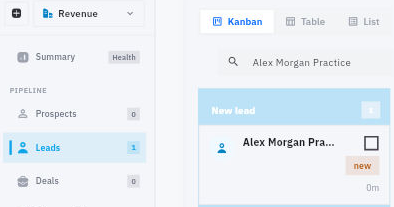
Check the result
4. Prepare a short response that acknowledges the requested outcome and asks the questions needed for the next decision—for example, the required output, who can approve it and the important timing constraint. Do not turn an enquiry into an unagreed booking or marketing subscription.
5. Open Inbox → Mail → Compose. Check From, the complete To address, any Cc/Bcc, Subject, Message and signature. If the exact response was already sent, do not send it again; inspect that message and continue with step 7.
6. When the complete response and audience are correct, select Send once. Find it in Sent and reopen the full message to check the recipient and content. A sent copy records your outbound message; it does not prove that the customer read it.
7. Return to the exact CRM lead and select Add note. Record what was sent, the questions awaiting a response and the next decision. Check for an identical note first, then Save only the new update.
8. Inspect Linked Work for the intended follow-up. If it exists, open it and preserve its current state. Otherwise select Add task, choose the correct Board, name the next action, preserve the generated lead reference and set the intended assignee and Due Date. Confirm the date with OK, then select Create Task.
9. Reopen the task from the lead’s Linked Work. Check its source, owner, date and current status. The next owner should know exactly what to review when the customer responds.
Expected result
The enquiry is captured once, its first response is traceable in Inbox and a specific next action is linked to the CRM source.
Common pitfalls
- A date written in Context or a note is not a scheduled task. Use the task’s Due Date for the follow-up.
- CRM ownership does not automatically assign Board work. Check the task’s actual assignee.
- After an uncertain send or save, inspect the original message or record before retrying. A second attempt can create a duplicate.
Continue learning
In this series: Customer enquiry to delivery — guide 1 of 3.
Turn what you learned into the way the team works.
Mark this lesson complete once the workflow exists in your workspace—not simply when you reach the bottom.