Transport course 03 — Routes trip planning assignment and departure
A route is a reusable description; a trip is a particular journey. A delivery assigned to a trip is not necessarily timed, dispatched or moving. Keep each transition explicit and reopen both linked records after changes.
Part of Transport module course
In this lesson
Reusable routes and specific journeys
A route is a reusable description; a trip is a particular journey. A delivery assigned to a trip is not necessarily timed, dispatched or moving. Keep each transition explicit and reopen both linked records after changes.
In this chapter
- Read and maintain a route
- Plan a trip with explicit endpoints
- Assign a prepared delivery and confirm both sides
- Schedule, dispatch and start the journey
Read and maintain a route
In Routes, open the exact route and review Stops, Assigned Trips and Instructions. Edit provides Route name, Origin, Destination, Estimated distance (km), Estimated duration (minutes), Route status and Instructions. Names describe the route, while endpoints describe locations; similar names are not evidence that a particular trip uses identical endpoints.
Add stop provides the stop name, Stop type (the sample starts at Waypoint), Dwell time (minutes) and Stop notes, with move and remove controls. A single stop has no adjacent position to move into. Dwell is time spent at the stop, not travel distance. Review order, access restrictions, unloading time and receiving windows with the operational owner. The presence of a dwell field does not establish automatic window validation or route optimisation.
Plan a trip with explicit endpoints
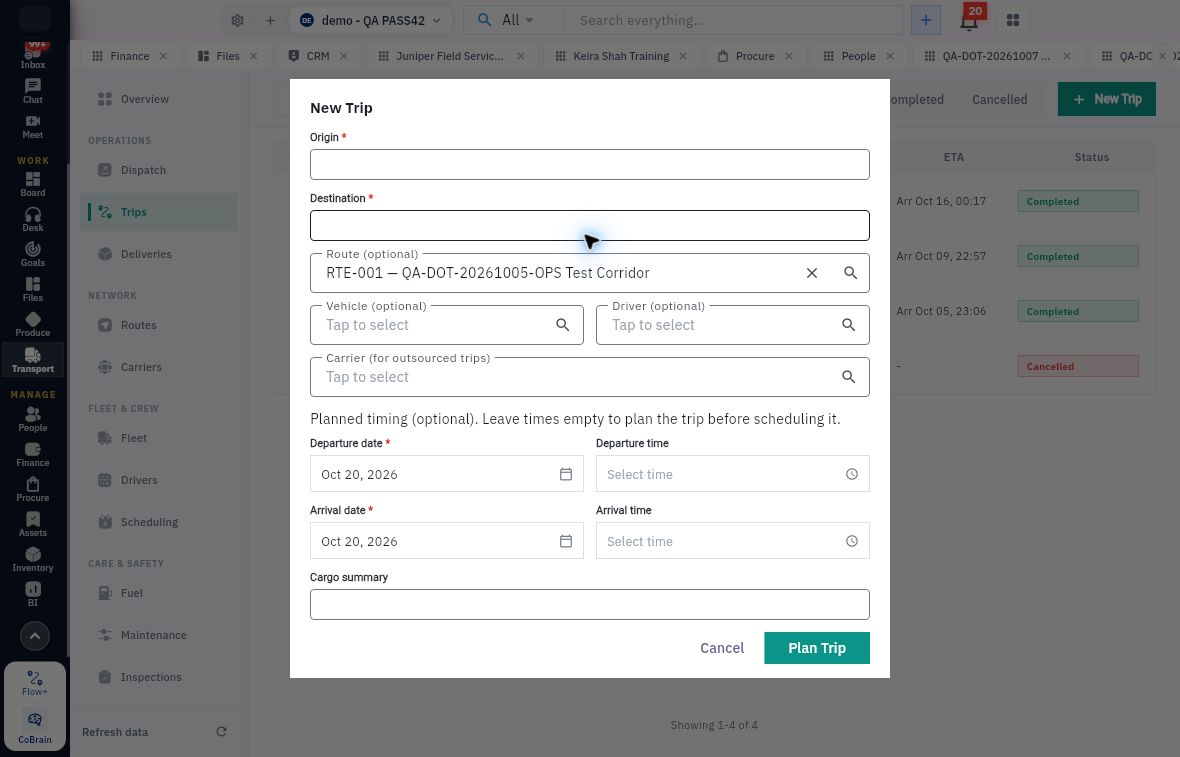
Trips → New Trip opens the planning form.
Assignment scheduling and departure evidence
Selecting a route does not fill the required trip endpoints; resource choices, planned dates and actual movement are separate.
Origin and Destination are required. Route, Vehicle and Driver are optional selectors at this planning stage; Carrier (for outsourced trips) is a separate relationship. Selecting a route leaves the required endpoints blank in the source form, so enter and verify them explicitly.
The form's Planned timing helper allows times to remain empty to plan before scheduling. Departure date and Arrival date still have required markers and date defaults. Departure time and Arrival time are separate inputs. Review the dates even when leaving times empty. Cargo summary is text, not a package selector or stock allocation.
Plan Trip creates the planned journey; Cancel abandons the form. Reopen the returned trip reference and check state, endpoints, route, vehicle, driver and package count. A zero-package trip does not demonstrate delivery assignment.
Assign a prepared delivery and confirm both sides
From the exact delivery, Assign Trip offers an eligible planned or scheduled trip before departure. Select the intended reference. Plan a new trip opens the same New Trip form when a new journey is genuinely needed. After Plan Trip, the new trip can return selected in the assignment dialog: selection is not assignment. Review it and choose the separate Assign action.
In the source simulation, DLV-001 linked to T-005, with fictional vehicle VH-004 and driver Casey Training. The delivery became Scheduled, but the linked trip was Planned with departure Unscheduled, no ETA and no actual departure or arrival. That combination is why a delivery status alone cannot support a promised arrival time.
Independently open the trip and verify the one-package relationship and pending drop-off. Keep this example distinct from T-004, the separate zero-package trip using VH-001. Do not mix their resource or outcome histories.
Schedule, dispatch and start the journey
Scheduling supplies departure and arrival timing. The demonstrated time picker permits selecting a time or switching to text input, then confirming OK for each time. Reopen the trip after saving: planned departure and ETA belong to the schedule; Actual departure and Actual arrival remain separate.
A Scheduled trip exposes Reschedule, Dispatch and Cancel. Dispatch is not an actual departure. Start Trip moves the trip to In Transit and its delivery to Out for Delivery in the supported simulation. Arrive records arrival separately; Complete is later closeout. Read the current action label and status instead of skipping forward because a button exists.
Do not infer a timezone from an older screenshot or silently shift stored times to make a timeline fit. If the displayed time basis is unclear, resolve it before promising a window. Preserve the planned schedule and actual events as different facts.
Before departure, reconcile cargo, complete load capacity, resource availability, required checks and receiving arrangements. When a selector is empty or a resource conflicts, review exact identities, dates and readiness; do not create duplicate drivers or vehicles, bypass an inspection requirement or put an unrelated resource on the trip just to advance it.
Turn what you learned into the way the team works.
Mark this lesson complete once the workflow exists in your workspace—not simply when you reach the bottom.