Check a product’s BOM and routing
Match the product to its Inventory item and review the exact manufacturing versions before planning work.
In this lesson
Check a product’s BOM and routing
A manufacturing definition has three linked parts: the Inventory item identifies what is counted, the bill of materials (BOM) specifies what is needed, and the routing explains how the work is performed.
Check the definition chain
1. Open Inventory → Items and find the exact SKU (the item’s unique stock code). Check the item name, type, stock unit and tracking method. Keep the finished item distinct from its component items. 2. Open Produce → Products and select that product. Compare its Inventory item reference, SKU and unit. A product definition does not create stock. 3. Open BOMs and find the intended BOM version. Read its status and effective date together; a newer Draft is not the same as an Effective version.
About this example: BOM-0004 shows v1.1 as Draft and 1.0 as Effective. A newer version and an effective-from date do not make a Draft the active manufacturing basis. Open the BOM to read its full product name and confirm that you have the intended version.

Check the batch basis and exact routing association
4. Open the BOM and check batch output plus every component line: item, quantity, unit, scrap, issue method and any substitute. Scale quantities from the stated batch basis—not from the number of component rows. 5. Check the BOM’s Approved routing association on that exact version. Do not infer a saved link just because a route uses the same product.
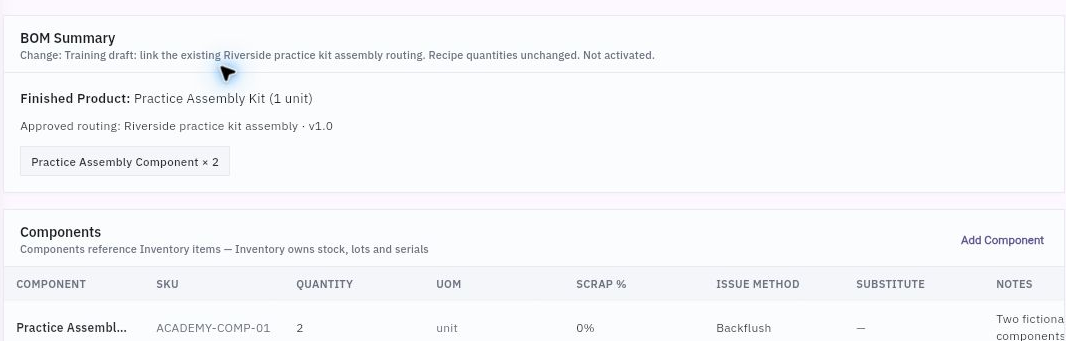
About this example: This practice-kit draft produces 1 kit from 2 ACADEMY-COMP-01 units and names Riverside practice kit assembly · v1.0 as its Approved routing. Its note says Not activated. A route saved on this draft does not establish the older Effective version’s association; open and check that exact version.
Read the named routing’s operations
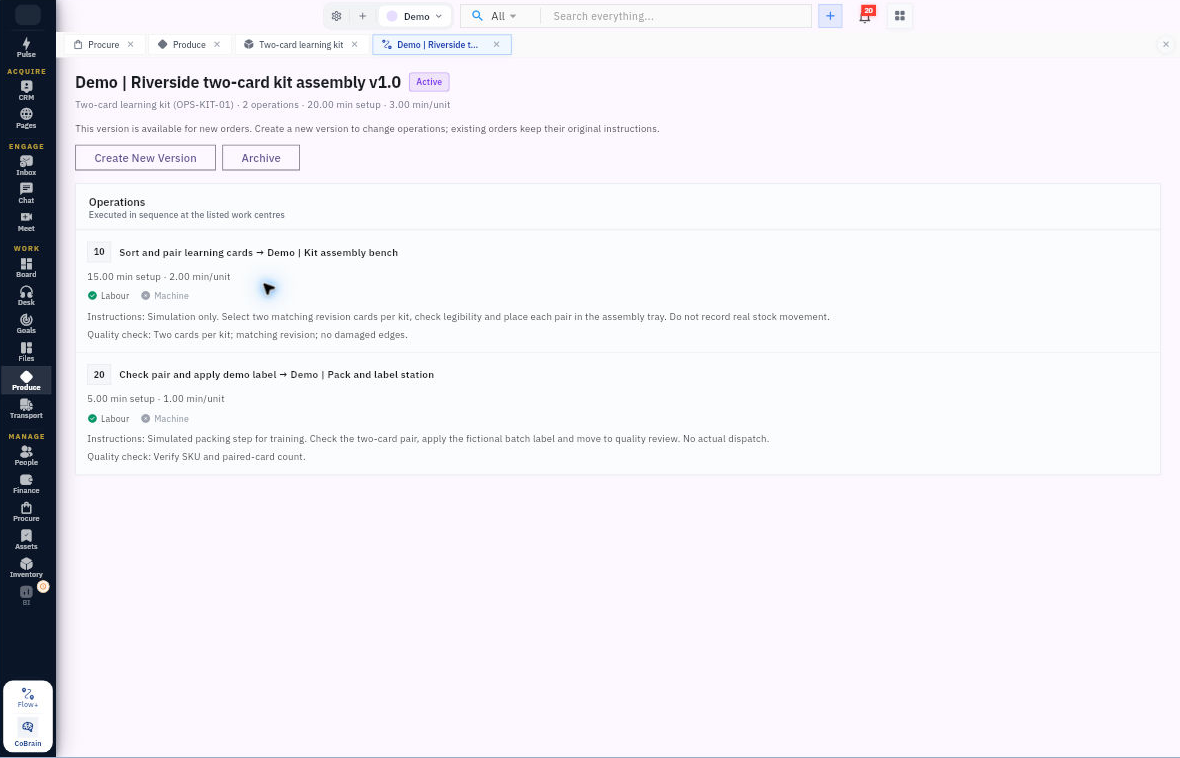
6. Open Routings and the named version. Read the operations in sequence, including work centre, setup time, run-time unit, resource flags, full instructions and quality checks.
About this example: This separate Demo two-card-kit routing illustrates sequenced operations, work centres, setup/run time, instructions and quality checks. It is not the Riverside practice-kit route named in the BOM example above. Open the exact associated route for your product and version; use your own approved manufacturing instructions.
Check the result
Expected result: you know which product, BOM version and routing version planning should use, and any missing association is clear.
Before a new setup: reuse the correct Inventory item. Products → New Product lets you select it, enter the manufacturing category and standard cost, then use Create Product. Reopen the product to check the saved identity before adding definitions.
Tips: A quality-check instruction is not an inspection result. An Active routing or Ready product does not prove materials are available or a work centre is staffed. Keep those checks for planning and execution.
Continue learning
In this series: Plan and record production — guide 1 of 9.
Turn what you learned into the way the team works.
Mark this lesson complete once the workflow exists in your workspace—not simply when you reach the bottom.