Settings course 02 — Membership invitations and effective access
Membership admits a person to a workroom; permissions determine what that person can do. An invitation, role definition, assignment and successful task are separate stages. Review all of them before declaring that a participant has the intended access.
Part of Workroom Settings module course
In this lesson
Membership and effective access
Membership admits a person to a workroom; permissions determine what that person can do. An invitation, role definition, assignment and successful task are separate stages. Review all of them before declaring that a participant has the intended access.
In this chapter
- Read Membership before inviting anyone
- Understand the invitation choices
- Recognise Guest policy as a separate model
- Trace the complete access chain
- Test permitted and excluded actions safely
Read Membership before inviting anyone
Open Workroom Settings → Membership. Distinguish Active members, Guests and Pending invitations, and read the relevant capacity display. A pending invitation is not active membership. A visible person in a search is not permission to invite them. Check whether the exact intended person already has an active or pending entry before starting another invitation.
The source example shows one Workroom Owner, a guest limit and a pending invitation. Its aggregate counts illustrate states only; they do not establish your capacity or the readiness of a new team. Check the current workroom and subscription scope before approved additions.
Understand the invitation choices
The supported email route is Membership → Invite by Email. Review the membership role, exact recipient address and Custom roles decision before Send. The inspected role defaults to Member. Its helper says that selecting no custom roles gives full built-in Member privileges, not no access. Never leave the field blank under the assumption that it creates a restricted account.
An approved invitation should have an exact recipient, workroom, purpose, duration and reviewed access design. Send once, then inspect and reopen its pending entry. Invited establishes the sender-side retained state, not inbox delivery or acceptance. If the result is uncertain, check Pending invitations before sending again.
The intended recipient must later accept with the correct account and enter the correct workroom. Entry after refresh is stronger than a link opening once, but still does not prove every intended permission. Recheck actual membership and task-specific access rather than combining a sender's pending state with a different person's login as if they were one lifecycle.
Recognise Guest policy as a separate model
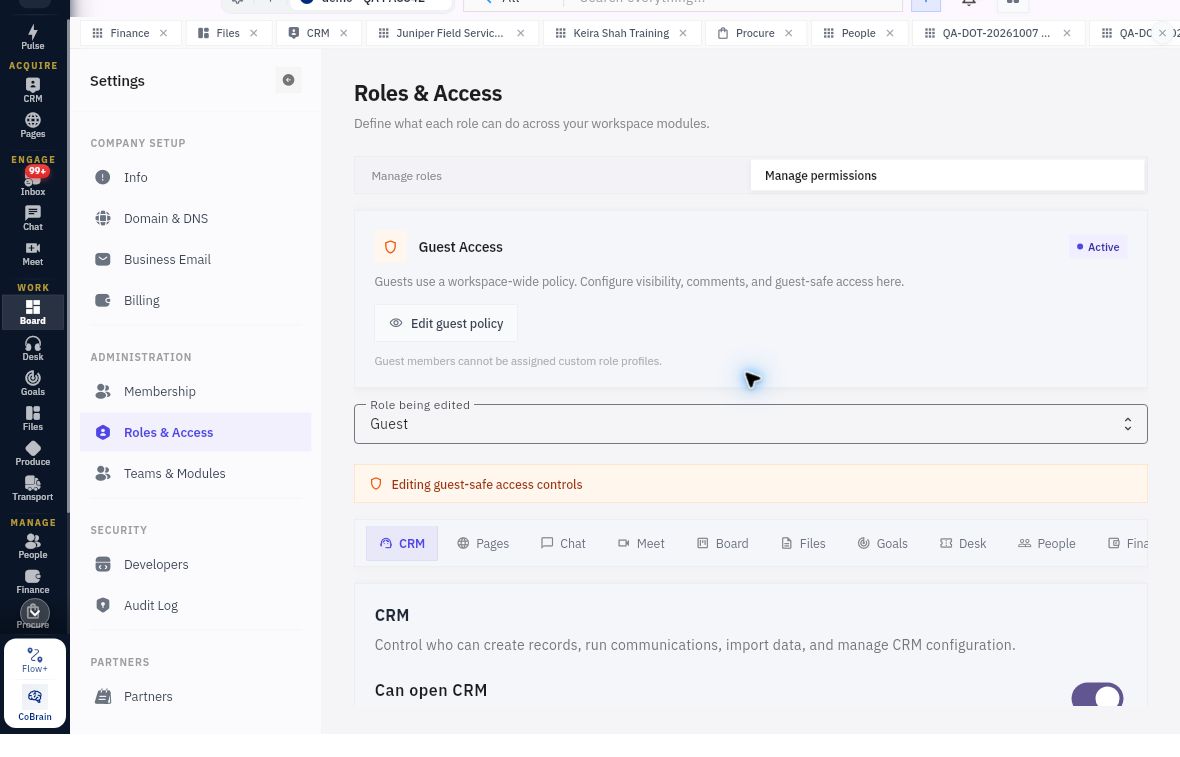
Invitations roles and retained access checks
Guest Access uses a workspace-wide policy; guests cannot be assigned custom role profiles.
Roles & Access separates Manage roles from Manage permissions. Guest Access uses a workspace-wide policy; Edit guest policy affects that policy. The displayed helper explicitly says guests cannot be assigned custom role profiles. Do not design a Guest-plus-custom-role shortcut or promote someone merely to avoid understanding the supported model.
The source Guest CRM helper permits view-only access while creation, editing, communications and configuration remain disabled. Read the actual current policy and context; the screenshot is not a universal assurance that all records are visible or that every direct link is blocked. A change to a shared Guest policy may affect more people than the participant in front of you.
Trace the complete access chain
Use six questions: Who is the intended account? What is its membership? Which role definition applies? Is that role actually assigned? What team/module/record scope applies? What can that account actually do on the exact record?
A role called Reader with 0 assignments is neither proof that the intended person has it nor proof that the person has zero privileges through another source. An Owner viewing an OFF toggle is reading a definition, not experiencing the restricted account's denial. A module gate such as Can open CRM is distinct from Create leads or Edit leads.
For a fictional coordinator who only needs to review a training lead and update an internal Board task, specify those actions and exclude customer communication, exports and Finance work. Do not choose a broad role because its name sounds convenient. Record unresolved mappings using business language until the actual control is confirmed.
Test permitted and excluded actions safely
A useful access test identifies the intended account, exact harmless record, required allowed action, intentionally excluded action, expected result and actual result. Test the required viewing or internal coordination task from that account, not from the administrator. Inspect an excluded action through an approved non-consequential check; do not post a journal or release payment merely to see whether denial occurs.
A disabled button can result from record state, missing prerequisites or access. A hidden module is not proof that every direct record route is denied. If the cause is unclear, record the result as inconclusive and inspect assignment, scope and object state. Do not broaden access or disable policy to obtain a passing test.
When someone leaves or changes duties, review current need, handover and retained membership with the access owner. A pilot ending does not automatically remove its participants. Any authorised removal or assignment change needs its own verification; a renamed role or absent menu alone is insufficient.
Turn what you learned into the way the team works.
Mark this lesson complete once the workflow exists in your workspace—not simply when you reach the bottom.