Create an enquiry page draft
Create or open a Pages draft, edit its name, headline and form copy, then preview it without publishing.
Part of Your first working workspace
In this lesson
Open and name your draft
Create a draft enquiry page, add your own headline and form wording, and preview it before sharing. This guide finishes with a saved draft—not a published page.
You need access to Pages in the workroom where you want to build the page, and permission to create or edit it.
1. Create or open your draft
Open Pages from the left menu. If you already have a draft for this purpose, open its Overview, choose Edit Page, and continue to step 2.
For a new draft, select New Page, choose Lead Capture Sprint, then select Use Template once. Wait for the editor to show Draft and All changes saved.
2. Give the page a useful name
Select Page settings on the canvas, then open the Page tab in the Inspector. If the Inspector is hidden, open More builder actions → Inspector panel.
Set Page name to something you will recognise in the Pages list, such as Consultation enquiries. This is the page’s internal name; it does not replace the headline visitors see.
Pages saves changes automatically. Wait for All changes saved before moving on.
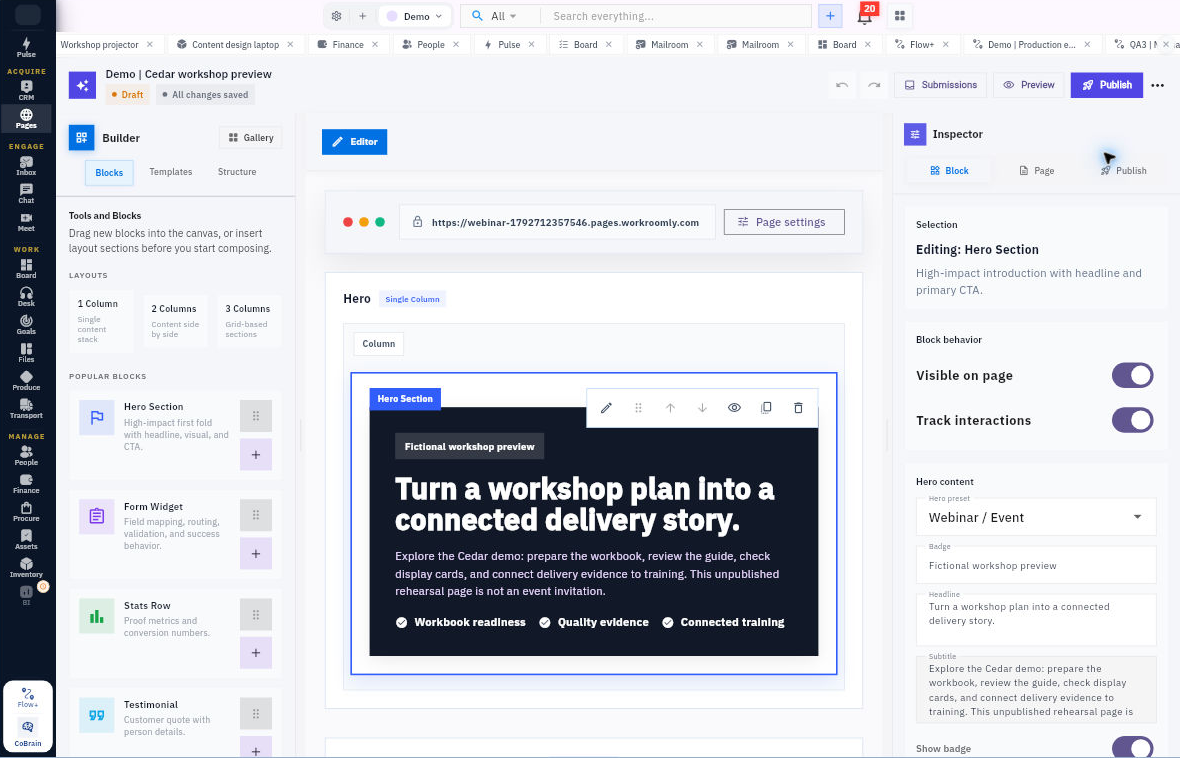
Edit, preview and check your draft
3. Write the main headline
Select Hero Section on the canvas. In the Inspector, choose Block and find Hero content → Headline.
Replace the template headline with a clear description of the request you want visitors to make. For example:
Ask about a consultation
Check that the new headline appears on the canvas. Use your own offer rather than copying a template claim that does not fit your business.
4. Update the form wording
Select the form title on the canvas. The Inspector’s Block tab should identify Form Widget.
Set Form title to match the headline—for example, Request a consultation.
Read the field labels and Required settings. Check that the form asks for the information you need. A simple enquiry form can start with a name and email address; avoid collecting extra information without a reason.
Under Success behavior → Thank You Panel, set the Success title and Success message. For example:
- Success title: Thank you
- Success message: We’ll review your enquiry and contact you about the next step.
Use wording that matches your own follow-up process. Do not promise an automatic email or a booked appointment unless that process is set up.
5. Preview the whole page
Wait for All changes saved, then choose Preview.
Read the page from top to bottom. Check that:
- The headline and form describe the same offer.
- Field labels and buttons are clear and easy to read.
- Text is not cut off.
- You have identified any remaining sample copy, images or claims that need replacing.
Choose Back to Edit to return. Keep the page as a draft while you finish any remaining content changes.
6. Reopen your saved draft
Return to the Pages list and find the page by its name. Open Overview → Edit Page.
Confirm that the page name, headline and form wording are still there and the page still shows Draft. You now have a saved starting point you can return to and refine.
Before you publish
Preview lets you check the page’s appearance. Before sharing it with customers, finish the content, configure where enquiries should go, and test that a submission is saved and reaches the right place. Those are separate steps; you do not need to select Publish to complete this guide.
Turn what you learned into the way the team works.
Mark this lesson complete once the workflow exists in your workspace—not simply when you reach the bottom.