Get started with Workroomly
Follow one small workshop example as you explore the workspace, prepare a task, organise its brief and record the enquiry in CRM.
Part of Your first working workspace
In this lesson
1. Find your way around Workroomly
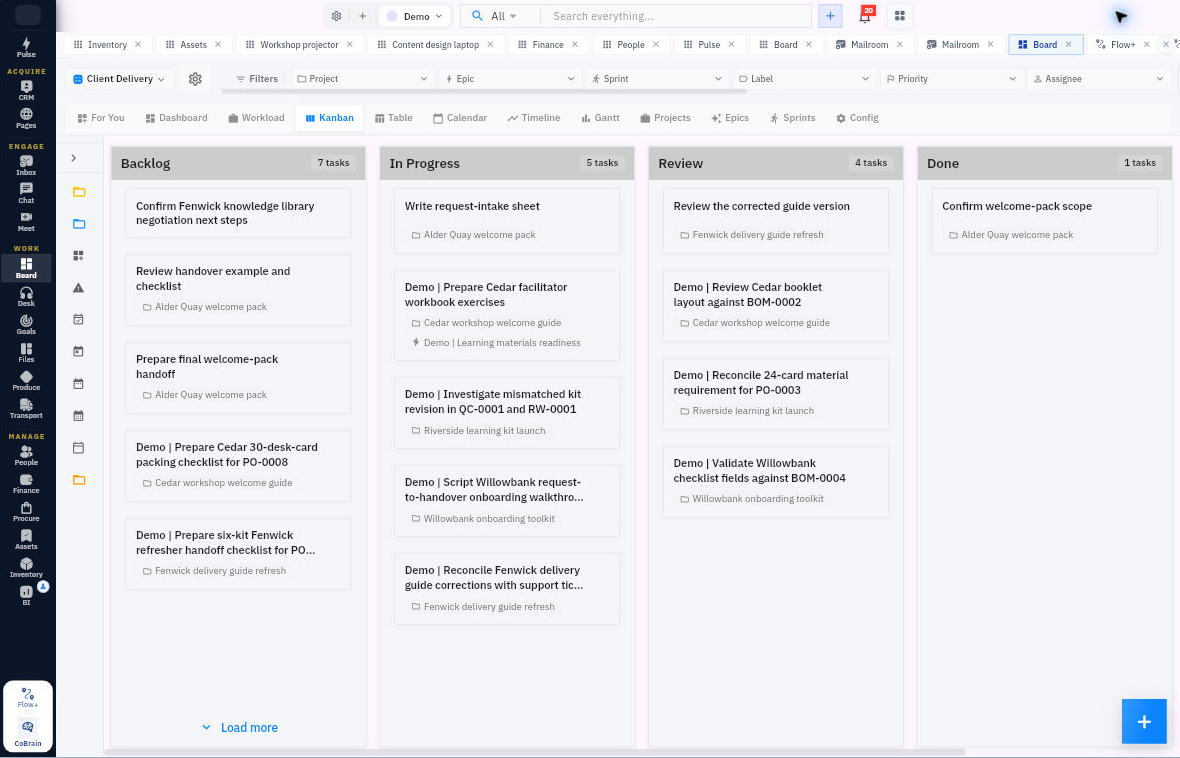
Start here: In your approved practice workroom, check the workroom name, open Board from Work, then open Files. Use the application-tab titles to switch between them.
Riverside Studio is the fictional team preparing the workshop; Cedar Lane Training is the customer. Cedar Lane needs a 45-minute workshop for five participants on 2 November 2026 at 10:00 UTC. The USD 150 budget ceiling is not yet approved.
Use the supplied fictional example. For app practice, use an approved practice workroom and only your own records; otherwise work in the worksheet. Keep sharing and permissions unchanged, and do not contact the fictional people.
Prepare your practice
Have an authorised practice workroom and a text editor. If you already belong to a team, use its agreed practice space rather than create a look-alike. If you cannot enter one, ask your administrator for the approved joining or creation route; meanwhile use the complete classroom route in this course.
Choose one practice mode. Practice workroom mode lets you make only your own approved Board task, harmless Files upload and fictional CRM lead in the Board, Files and CRM sections. Source reading mode uses the course inputs and worked UI evidence instead, with no application changes. Record the mode honestly; a classroom answer is not a saved Workroomly record.
Choose a short run suffix, such as QS2601. Your practice task is TRAINING Riverside launch pack QS2601; your CRM lead is Alex Morgan Practice QS2601. If that suffix already exists, reuse your own same record or choose another agreed unique suffix. Never change somebody else’s training record. Use your own verified account for self-owned work, not a fictional character’s name.
Copy the foundation worksheet from Practice materials into your text editor. Read and save the complete launch brief with your run suffix. The full Packet A is included there as background reference; you do not need to read it all before starting.
Check context before each action: workroom, module, exact record and your authority. Save with that record’s own control, then reopen it. A selected field, toast, open tab or label is not enough to establish the saved result. If a result is uncertain, look for the same record before trying again.
Complete the worksheet’s context and four module entries: Settings, Board, Files and CRM.
Navigate the workspace
The top workroom selector identifies the team space. The left rail opens modules. The horizontal application tabs return to modules or records already open. A module’s own sidebar, tabs and filters change the view inside it. Browser tabs are outside these three levels.
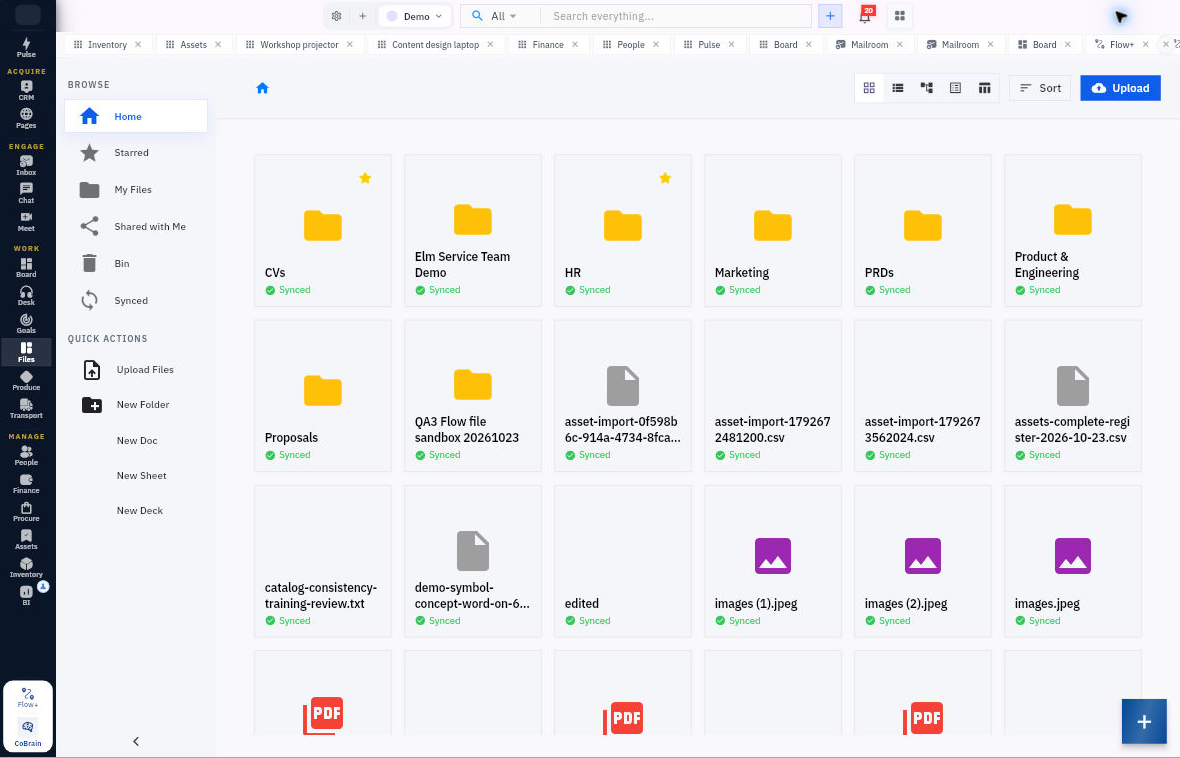
Open Board from Work, then Files from Work. Select the Board application-tab title to return. Select Files, then Starred under BROWSE. Close only an unused application tab with its small x. Closing a tab does not delete the record, and an open tab does not save a form.
When work is safely saved, a reload is useful for checking retention. Recheck the workroom, module and subview afterward. The retained navigation example kept Board and Files tabs but returned Files to Home rather than Starred. Choose the subview deliberately.
After creating your task in section 3, you can find it from Files: use Search everything in the top bar, choose Board as the scope, enter its exact title and press Enter. Read the result type as well as the title. Open it and check the board and full title before editing. All is a wider scope, not proof that you can access every record. No result is a reason to check scope and filters, not immediately create another task.
Membership is separate from business records. A Pending invitation is not confirmed entry. A People employee can be Active while workroom access is Unlinked. Do not invite the fictional people in this packet. For a real teammate, use the full joining and access lessons with a verified person and approved role.
The map has 21 modules: Settings; CRM and Pages; Inbox, Chat and Meet; Board, Desk, Goals, Files, Produce and Transport; People, Finance, Procure, Assets, Inventory and BI; plus Pulse, CoBrain and Flow+. Pulse summaries and AI or workflow tools supplement the underlying records; they do not replace them.
2. Check your workroom
2 minutes estimated. Settings identifies the shared workroom and its defaults. You need the right space before creating any practice record.
Open this route: Workroom selector → Workroom Settings gear → Company setup → Info.
Try it
Compare the displayed workroom name with the top selector. Read the default currency, default timezone and privacy description without changing them.
Write those displayed values and today’s observation time in the foundation worksheet. If using source reading mode, write “No application observation made” and keep the case currency USD and case times UTC as classroom facts.
Ask the administrator for the intended joining or membership route if a teammate cannot enter. Do not change a role, invitation, billing plan or privacy setting to make this exercise work.
Check your result
Expected result: A small context record that distinguishes your actual workroom from the fictional Riverside business story.
Checkpoint: Can you explain why a case amount in USD does not authorise changing the workroom’s default currency?
If your screen differs: Wait for a settled Info view. If it remains blank or the workroom is wrong, use the course evidence and ask the administrator for the intended access. Do not save a blank form.
3. Create your first useful task
6 minutes estimated. Board turns an intended outcome into findable work. Your outcome is the complete Riverside launch pack, not merely a task marked Done.
Open this route: Top bar Create New plus → New Task; then Board → Main Board → Table, or global Search everything with Board scope.
Create and find the task
Check for TRAINING Riverside launch pack QS2601 first. For a new permitted record, choose the approved practice board, enter that exact title with your unique suffix, leave status Backlog and leave unverified colleague assignments blank. Select Create Task once.
Open the saved task and check the full title and board. In Status & Planning select In Progress, then Update Task once. Search Board for the exact title and reopen it to verify In Progress. If the create outcome is uncertain, inspect before retrying.
In the foundation worksheet, write the brief: “Prepare the 45-minute workshop guide, five-kit material plan and named next checks. Finish when the guide uses 10:00 UTC, the numbers reconcile and the remaining delivery gates are explicit.” Keep the full brief locally unless your permitted task editor and saved readback support it.
Check your result
Expected result: One identifiable saved task in practice mode, plus a usable written outcome brief in either mode. Do not claim the brief is in a native description field unless you saved and reread it there.
Checkpoint: Write the exact title, board, observed status and any generated reference. In source reading mode, say “Task specification prepared; no native task created.”
If your screen differs: If the task opens as a generic New Task screen, inspect the existing Board list before creating anything. Preserve the uncertainty rather than making a duplicate.
Optional deeper practice: BRD05 teaches verified self-assignment; BRD06 adds dates and planning. A date-only field does not establish a timed deadline.
4. Keep your working brief easy to find
3 minutes estimated. Files holds the actual working material. A task’s title is not the workshop guide, and a file being uploaded is not proof another person can read it.
Open this route: Files → QUICK ACTIONS → Upload Files; then My Files → Grid View → exact file menu → Star → Starred.
Upload and find your brief
Read the complete launch brief under Practice materials at the end of this tutorial. It already contains the customer need, agenda, material quantities, risks and next checks. Save a local copy with your run suffix; this is your first useful launch brief, not a blank template.
If harmless training upload is approved, select that exact local copy through Upload Files. Wait for completion, find its full name in My Files and check Synced. Use its three-dot menu to Star, then find the same file in Starred.
Reopen Files or reload after saving unrelated work. Check the exact filename, yellow star and Synced. Keep sharing unchanged. Retain the local complete text as the content reference; a visible file card alone does not verify a full preview or audience access.
Check your result
Expected result: A complete local launch brief, and, when performed, a findable same-name training upload. The brief and Board task share your run suffix for manual traceability.
Checkpoint: Can you find the brief again without uploading a second copy? Record upload and content-review evidence separately.
If your screen differs: If the upload is unclear, inspect the listing first. If unavailable or not authorised, retain the local brief and mark the upload not performed.
Optional deeper practice: FL03 teaches folders and moves. FL04–FL05 teach minimum access and recipient-side readability; do not turn on broad link sharing as a shortcut.
5. Capture the customer enquiry
5 minutes estimated. CRM keeps customer context and the next investigation together. Alex’s request is an enquiry, not a confirmed purchase or newsletter permission.
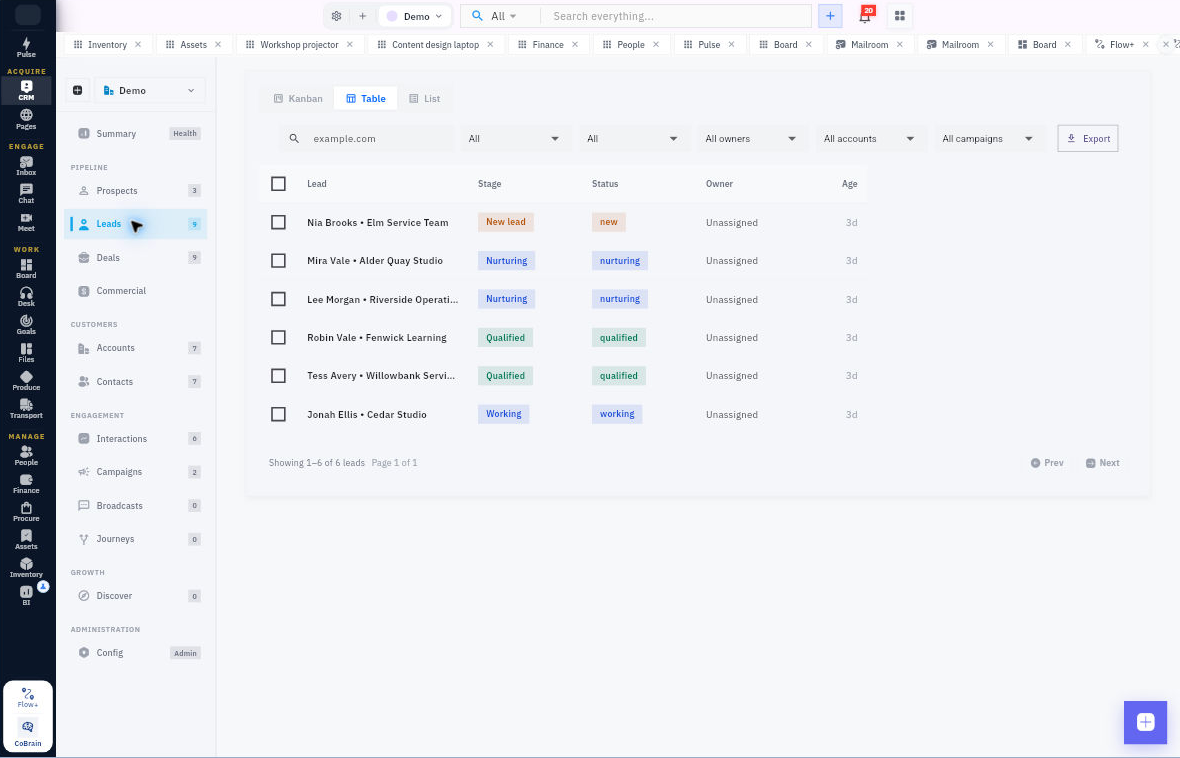
Open this route: CRM → Pipeline → Leads → local Search; bottom-right Quick actions plus → New Lead.
Record the enquiry
Search Alex Morgan Practice QS2601 with your suffix. If no intended record exists and creation is approved, open New Lead. Confirm Space assignment; enter the distinctive Full name; leave Company / Account, email and phone blank.
In Signals & scoring → Context enter: “Fictional training enquiry for five workshop participants on 2 November 2026 at 10:00 UTC, 45 minutes. Budget ceiling USD 150 is not yet approved. Prepare the launch pack and confirm scope, price and delivery plan. Enquiry follow-up only; no marketing consent.” Select Create lead once.
Reopen the same lead from Leads and read Details. Compare the full name and complete Context. Record its actual stage/status rather than changing them to match a screenshot. Put the lead identity and your Board task title together in the foundation worksheet; this is a manual cross-reference, not a native relation.
Check your result
Expected result: A complete enquiry record when performed, or the complete lead specification locally. The budget and consent limits remain visible.
Checkpoint: What is still unknown? Answer: commercial acceptance, delivery readiness and the actual customer outcome. A retained lead does not settle them.
If your screen differs: If the CRM space or New Lead route is unavailable, use the local context text. Do not create another space or assign a fictional employee.
Optional deeper practice: CRM06 teaches Add note and Add task with an independently checked Linked Work relation. Reuse the existing task if the supported route permits linking; do not create a duplicate just to show integration.
Finish your starter workspace
Your foundation worksheet should now contain your workroom context, task specification, local launch-brief filename and complete enquiry context. Record which actions you actually performed in Workroomly, keeping prepared specifications separate from saved records.
If you created the Riverside task, leave it In Progress while the corrected guide and later readiness checks remain open. Completing this starter tutorial prepares the first work package; it does not finish the whole workshop launch.
Practice materials
Complete workshop launch brief
Copy this complete brief into a local text file when you reach the task and Files exercises. Use your run suffix in the filename.
Riverside workshop launch brief

Fictional training only. No native or physical outcome is asserted.

Customer need: Cedar Lane Training, five participants, 2 November 2026 at 10:00 UTC, 45 minutes. Budget ceiling USD 150 remains unapproved at the initial checkpoint.

Outcome: a clear handover exercise using responsible person, next action and exception rules, plus five kits of two cards and one sleeve each.

Agenda: welcome 5 minutes; demonstration 10; practice 20; review 10. Total 45 minutes.

Preparation: correct guide v1 start from 09:00 to 10:00 UTC without changing its exception rule; prepare full v2 for content review.

Supply: required ten cards and five sleeves; eligible eight cards/four sleeves; gap two cards/one sleeve at USD 1.40. Holds and another job’s reservation remain protected.

Work: prepare the full guide, material plan and next-check list. Casey’s facilitator role is accepted in the paper case; software identity and workspace access are not established.

Commercial draft: USD 90 facilitation plus five kits at USD 12 = USD 150. No tax or discount in this classroom example.

Open checks: guide content and requester-use review; accepted material receipt; customer price/delivery acceptance; actual reusable-equipment readiness; load/transport readiness.

Next action: prepare the whole corrected v2 and compare it with the supplied request before asking for review. Do not send, buy, approve, dispatch or pay from this brief.
Starting facts Packet A
Use Packet A for this foundation path. The later business-story walkthrough introduces the subsequent outcomes.
PACKET A

All names, dates, places, identifiers and events in packets A and B are fictional teaching facts. They are not existing Workroomly records, real contacts, bookings, stock, invoices or proof of physical activity. Case currency is USD and every case clock is UTC. No real addresses or credentials are needed. The fictional dates stay fixed for the case; do not create past-due native reminders from them.

A1 Customer enquiry received on 26 October 2026 at 09:00 UTC. Alex Morgan, Cedar Lane Training: “Please plan a 45-minute handover workshop for five participants on 2 November at 10:00 UTC, with five practice kits. Our budget ceiling is USD 150 but I still need to approve the price and delivery arrangement. Please reply about this enquiry only, not marketing.” No email or telephone is supplied.

A2 Proposed scope and roles. Riverside Studio prepares one workshop guide and five kits. The guide teaches a responsible person, next action and exception rule. Rowan is the fictional workshop lead and content reviewer. Mina is the fictional coordinator. Casey Training has explicitly accepted the facilitator preparation role in this paper case. Alex must accept price and delivery. These are paper role agreements, not actual accounts or saved assignments.

A3 Agenda and guide v1. Title: Riverside handover workshop guide v1. Start: 2 November 2026 at 09:00 UTC. Duration: 45 minutes. Agenda: welcome and purpose 5 minutes; demonstrate responsible person, next action and exceptions 10 minutes; five-person practice exercise 20 minutes; review and next steps 10 minutes. Each kit contains two prompt cards and one sleeve. If a kit item is missing or damaged, stop that kit’s exercise, keep the result unresolved and tell the facilitator; do not invent a count or mark it complete. The start time is the deliberate defect. All other text must be preserved in the correction.

A4 Correction request on 26 October at 09:15 UTC. Mina asks: “The enquiry says 10:00 UTC but guide v1 says 09:00. Correct the guide’s start to 10:00 UTC, keep the rest of the content and the complete exception rule, then return the whole v2 for review. Content review is not a test of a real meeting or stock.”

A5 Recipe and stock at 26 October 09:20 UTC. RIV-KIT v1 makes one kit from two RIV-CARD and one RIV-SLEEVE, zero scrap. Five kits are needed; there are no finished opening kits. Cards: 11 on hand, two held, one reserved for another job, eight eligible. Sleeves: five on hand, one held, four eligible. No incoming receipt is yet accepted. Unit cost is USD 0.50 per card and USD 0.40 per sleeve. Buy only the exact gap. All units are each; no tax, freight or discount applies in this simplified purchase exercise.

A6 Production plan and resources. One setup of five minutes plus two minutes for each kit makes 15 active minutes. Follow with a separate check that each kit contains two correct prompt cards and one usable sleeve. Work uses a reusable desk and tray; no extra stocked inputs, packaging, machinery or scrap are required. No labour or overhead cost is supplied. Do not infer a full profit from material cost alone.

A7 Commercial draft. Workshop facilitation is USD 90; kit selling price is USD 12 each, five kits. No tax, discount or exchange rate applies in this simplified classroom calculation. Alex has not yet approved. A later invoice must not be called paid without receipt and application evidence.

A8 Asset and delivery requirement. One projector RIV-P01 and one cable RIV-C01 are required for Casey’s session, with exact identity, accessories and working-sample checks before use and after return. One fictional bundle contains five kits; origin Riverside prep desk; destination Cedar Lane training room; intended recipient Alex; required arrival before 09:45 UTC on 2 November. Vehicle, driver, weight and volume are not supplied at this planning checkpoint. Do not infer dispatch readiness.

A9 Readiness register at 26 October 09:30 UTC. Q1 Scope and agenda accurately documented: Pass, supported by A1–A2 and the agenda duration. Q2 Facilitator accepts preparation role: Pass, supported by A2. Q3 Guide time matches 10:00 UTC: Fail, A3–A4. Q4 Eligible material covers ten cards and five sleeves: Fail, A5. Q5 Customer accepts price and delivery plan: Pending, A1 and A8. The fixed denominator is five checks; only Pass counts. Target is five before delivery.

A10 Local practice boundary. Use your own run suffix and verified practice workroom for the optional Board task, harmless Files upload and lead. Fictional names are not invitees, recipients or payment destinations. If no approved practice route exists, retain the local specifications and mark native work not performed.

A11 Complete prompt card 1 text. Clear handover practice. Fictional scenario: Mina has accepted checking the complete guide v2 against the 10:00 UTC start and 45-minute agenda by 2 November 2026 at 09:00 UTC. Write the responsible person, their next action, the finish condition and the due time. Do not turn a request to another person into accepted ownership.

A12 Complete prompt card 2 text. Exception practice. Fictional scenario: your kit should have two prompt cards and one sleeve. Both cards are present and undamaged, but the sleeve is missing. Casey is the facilitator. State the next action and whether the kit exercise may be called complete. Do not invent a count or silently substitute a different item.

A13 Complete exercise answer key. Card 1: responsible person Mina, whose responsibility is explicitly accepted in the scenario; next action compare the whole guide v2 with the 10:00 UTC start and 45-minute agenda; finish condition report the exact version and whether its time and agenda match; due 2 November 09:00 UTC. Card 2: stop that kit’s exercise, keep its result unresolved and report the missing sleeve to Casey; do not invent a count or mark complete. Each finished kit must contain the full A11 and A12 texts on its two cards, plus one usable sleeve. A partial card title is not correct content.
Copyable foundation worksheet
Copy this worksheet into your text editor. Complete only what you actually prepare or observe.
Riverside foundation worksheet

Keep this file local. The Practice kit supplies the fictional facts for this path. Fill only your actual observation fields; never copy a fictional fact into a native-observed field.

Run suffix: __________  Practice mode: __________  Actual observation date/time: __________

Actual workroom/module/role context, if inspected: __________

First useful output: complete launch brief reviewed; actual local filename: __________

Next action: prepare and review the corrected guide in the later business-story exploration.

Native task title/board/reference/status or not performed: __________

Native uploaded file and star readback or not performed: __________

Native CRM lead full name/space/context readback or not performed: __________

01 Settings Know where you are working
What I produced or concluded: __________
Native action/observation or not performed: __________
Source and next check: __________

02 Board Make the first useful task
What I produced or concluded: __________
Native action/observation or not performed: __________
Source and next check: __________

03 Files Keep a complete brief findable
What I produced or concluded: __________
Native action/observation or not performed: __________
Source and next check: __________

04 CRM Capture the enquiry without inventing a sale
What I produced or concluded: __________
Native action/observation or not performed: __________
Source and next check: __________
Turn what you learned into the way the team works.
Mark this lesson complete once the workflow exists in your workspace—not simply when you reach the bottom.