Get started with Workroomly
Learn the essentials of navigating Workroomly and saving a useful task in Board.
Part of Your first working workspace
In this lesson
Find your workspace
Create your first task in Workroomly, add enough detail to make it useful, and find it again when you are ready to work.
You need to be signed in to a workroom where you can create tasks. If your team’s workroom is missing, ask its owner to give you access.
1. Open your workroom and Board
Check the workroom selector at the top of the screen and choose the team space you want to use.
In the left menu, open Board under Work. Check the selected board above the task area and choose the one your team uses for this work.
A workroom is your team’s space. A board organises tasks within that space. You do not need to set up another workroom or board to follow this guide.
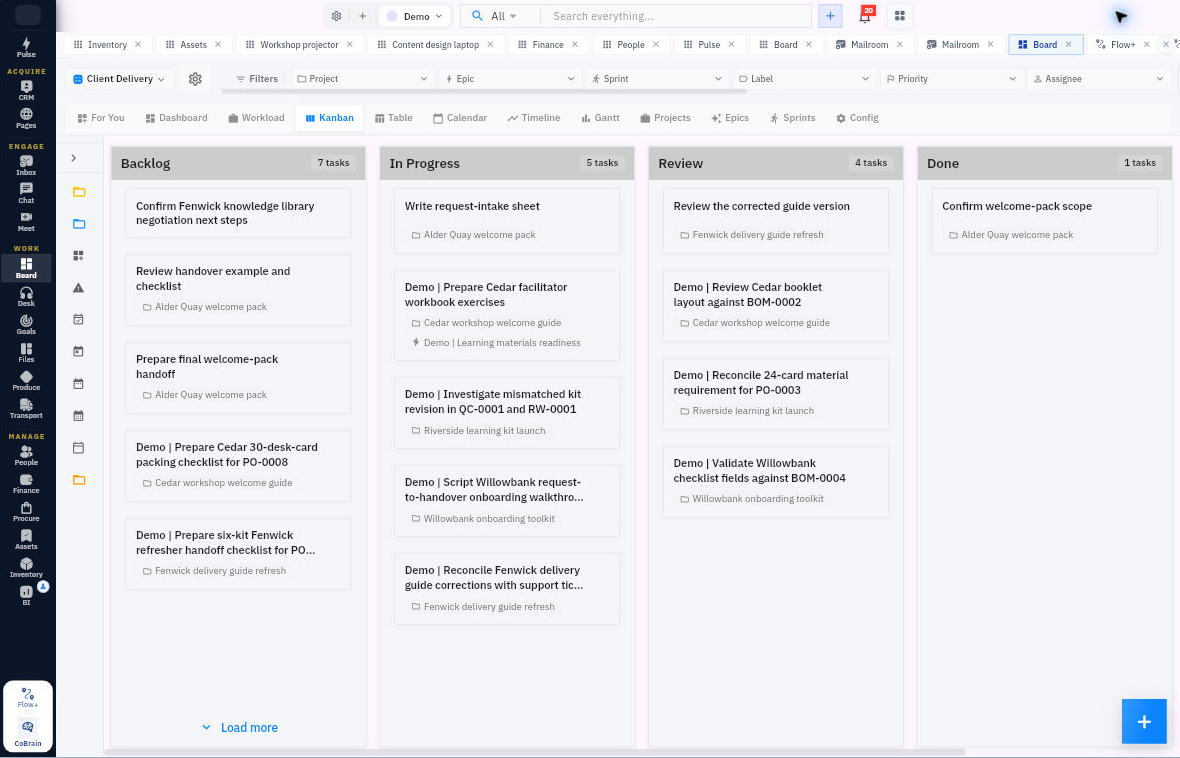
Create and find your first task
2. Choose one task to create
Start with something you actually need to do. A useful title names the work clearly: Prepare the next team meeting agenda is easier to understand than Meeting.
Tip: If the task may already exist, search for its title in Search everything → Board first. If you find it on the right board, open it and skip to step 4.
3. Add the task
Select the + Create New button in the top bar, then choose New Task.
In the task form:
- Select board: choose the board you checked in step 1.
- Task Title: enter a short, specific name for the work.
- Description: explain what needs to be done and how you will know it is finished.
- Status: keep Backlog if the work has not started.
For example, you could use:
Task Title
Prepare the next team meeting agenda
Description
Draft an agenda covering progress updates, decisions needed and next steps. It is ready when the agenda lists each topic to discuss and the decisions the team needs to make.
Use the example or replace it with your own work. You can leave the other optional fields for later; you do not need a project, deadline or attachment to create this first task.
Check the board, title and description, then select Create Task once.
4. Find your saved task again
Leave the task and use Search everything in the top bar. Choose Board, enter the exact title and press Enter.
Open the matching result. Check that it belongs to the intended board and that your title and description are still there. This is the task you will return to as the work progresses.
If you cannot find it, check the workroom, board and search scope before creating another task.
Your first task is ready
You now have a task in the right place, with a clear description of the work. When you return to Workroomly, use the same search to pick up where you left off.
If you cannot open Board or see the task-creation option, ask your workroom owner for access. You do not need to change your team’s settings to finish this guide.
Turn what you learned into the way the team works.
Mark this lesson complete once the workflow exists in your workspace—not simply when you reach the bottom.