Inventory course 07 — Replenishment demand settings and what if planning
Replenishment compares dated demand with eligible supply under a configured planning basis. A recommendation is not a purchase, a receipt or a promise that capacity can meet a deadline. This chapter explains the controls and how to read a useful result.
Part of Inventory module course
In this lesson
Replenishment planning and demand scope
Replenishment compares dated demand with eligible supply under a configured planning basis. A recommendation is not a purchase, a receipt or a promise that capacity can meet a deadline. This chapter explains the controls and how to read a useful result.
In this chapter
- Start with the exact planning scope
- Set the rule's scope and method
- Read Settings without borrowing defaults
- Follow requirements into Procure carefully
- Run a bounded what-if comparison
- Produce an accountable plan
Start with the exact planning scope
Open Inventory → Replenishment. Tabs are Recommendations, Rules, Purchase Requirements, Planning risks, Bin replenishment and What-if. Match item and warehouse on each recommendation; two cards for the same SKU in different warehouses are not a single balance.
Before planning, identify current eligible quantity, existing reservations, held stock, confirmed demand dates, expected receipt dates and the intended horizon. A receipt due after the demand deadline does not close the earlier gap. Do not count an expected receipt both as incoming supply and already on hand.
Set the rule's scope and method
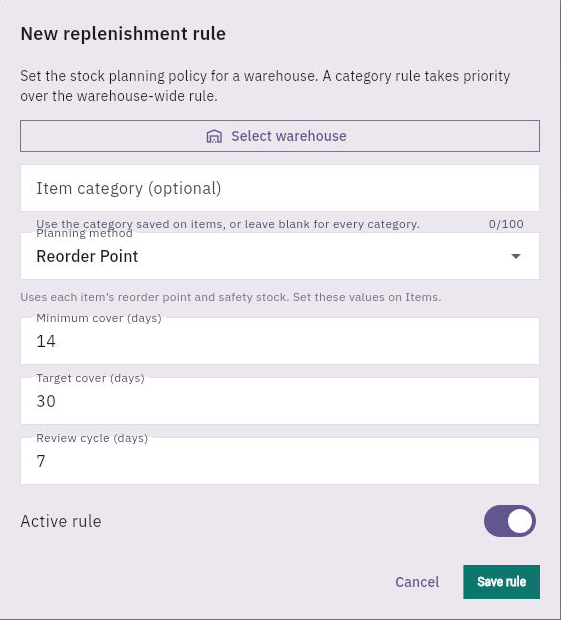
Rules → New rule selects warehouse and optional Item category. A category rule takes priority over a warehouse-wide rule according to the helper; leaving category blank applies to every category. Confirm that broad scope intentionally rather than treating the blank as cosmetic.
Planning recommendations and controlled decisions
Replenishment-rule form separates warehouse/category scope, method, cover days, review cycle and active state.
Planning method offers Reorder Point, Min / Max and Consumption Based. The Reorder Point helper uses the item's reorder point and safety stock set on Items. Minimum cover, Target cover and Review cycle are in days. Active rule can default On. A reorder point of four units does not belong in a four-day cover field simply because both accept numbers.
After an authorised Save rule, independently reopen the exact warehouse/category rule and compare method, day values and state. Then inspect the resulting recommendation against the actual demand/supply basis. A saved configuration alone does not prove a useful or enforced policy.
Read Settings without borrowing defaults
Inventory → Settings includes a default warehouse and planning-related choices. Compare current settings with the intended item and operation rather than assuming the default selects the correct site. The Settings units list does not turn New Item's text stock-unit field into a demonstrated dropdown or prove conversions.
Confirm which demand sources the configured basis includes before interpreting forecast changes. Preserve unit, dates, lead time, reorder/safety settings and eligible receipt evidence. Do not turn on forecast, add a dummy order or edit a receipt date just to make a scenario produce a nonzero result.
Settings also exposes Require putaway before stock is available, Auto-reserve stock on order and Allow negative stock. Their helpers respectively describe received stock staying at the dock until putaway, new orders holding available stock, and picking beyond recorded on-hand. Treat these as configuration descriptions, not proof that a particular transaction enforced them. Negative-stock permission is not authority to invent supply.
Stock policies separates Low-stock threshold as a percentage of reorder point, Expiry alert window in days, Reservation expiry in days and Replenishment review cycle in days, each with its own Save. Planning basis can read Days of cover from last 30 days of issues. Include CRM forecast in planning describes probability-weighted pipeline demand that is never treated as a firm order. Match units and actual demand coverage before interpreting a recommendation. An expiry alert does not release a lot, and a configured reservation interval does not prove a specific allocation expired.
Units of measure lists names such as unit, pack, box, carton, pallet, bag, pail, bucket, ream, roll and bale. Names alone do not supply conversion ratios. Numbering sequences and Save Sequences configure reference series for receipts, putaway, transfers, counts, reservations, returns and other records. Displayed sequence values are not newly assigned identifiers. Never reset them to make a tutorial number match; let the authorised creation reveal its actual reference.
Follow requirements into Procure carefully
Purchase Requirements can show a requirement reference, item, quantity/unit, warehouse, lead time, Procure request and Sent to Procure. That state identifies a source-side handoff, not a supplier order or actual receipt. The inspected page does not expose a general blank requirement-creation launcher; do not reinterpret Acknowledge or Dismiss on other planning surfaces as purchase actions.
Open the exact linked request through Procure and compare its source and state, then follow any later order and receipt separately. Bin replenishment and a warehouse purchase requirement concern different movements; moving stock inside a warehouse does not create external supply.
Run a bounded what-if comparison
What-if states that it uses real stock, dated expected receipts and configured demand basis without changing saved orders, commitments or Finance records. Its three inputs are Forecast change (%), Expected receipt delay (days) and Hours lost per work centre per day.
A forecast value of 20 increases included forecasts by 20%; minus 20 reduces them. Confirmed orders and historical consumption stay unchanged according to the helper. Receipt delay shifts dated expected receipts later; missing or overdue dates remain excluded. Hours lost compares configured capacity, not confirmed operation or delivery dates. No planning-period selector is exposed, so do not apply an unrelated item's date window to the run.
Review signs and units, select Run scenario once and wait for the settled result. Read population coverage before reassurance. If eight items are analysed but forecast quantities are included for zero, a zero-change result has not stress-tested a populated forecast set. It does not prove every receipt can safely slip or all demand is covered.
For capacity, one hour lost from eight is 12.5%, while one from four is 25%. Read every work centre's own baseline, scenario hours and queued minutes. A small queue or zero queue is not a confirmed available slot: operation and customer-delivery dates still require a finite schedule. The run is transient in the demonstrated view; normal reload resets inputs and removes results, with no saved-scenario history control shown. Retain the comparison through the approved reporting process before leaving.
Produce an accountable plan
For a fictional new need of six packs at noon, four are currently free and two are due at 12:30. The noon gap remains two. Recommend verified earlier supply or an explicit partial/revised-time decision from the demand owner, not an invented release or receipt. State which assumptions drive the recommendation, the exact source records and the owner of each remaining decision.
If a scenario or recommendation is inconclusive, inspect its basis and dates rather than forcing an operational change. Planning can explain a gap; it cannot authorise a purchase, override a quality hold, allocate another demand's stock or certify physical delivery.
Turn what you learned into the way the team works.
Mark this lesson complete once the workflow exists in your workspace—not simply when you reach the bottom.