Files course 02 — Organise folders and control the file audience
Create a useful folder, move the exact file into it, and read direct, inherited and link access together before making a named sharing decision.
Part of Files module course
In this lesson
Folder purpose creation and item controls
Create a useful folder, move the exact file into it, and read direct, inherited and link access together before making a named sharing decision.
In this chapter
- Choose a folder for a working purpose
- Understand the item menu
- Inspect before moving
- Move the intended item once
- Read all sources of access
- Grant a named person deliberately
Choose a folder for a working purpose
A folder groups related material; it is not automatically a private boundary. Moving a file can change the access it inherits, so organisation and audience must be considered together. For the practice workshop checklist, use a clearly named folder such as Workshop materials in an agreed training location rather than a vague folder called “Misc”. Check for an existing suitable folder before creating another.
On Files → Home, choose Quick Actions → New Folder. The Create New Folder dialog asks for Folder Name. Read the current parent location, enter the intended name and choose Create once. Then find and open the new folder, checking the complete name and breadcrumb. A name typed into a dialog is not yet a saved destination; the reopened folder is the useful confirmation.
If a similarly named folder already exists, inspect its location and audience before reusing it. Do not assume that a familiar name means it belongs to the current project or has the right members. You need authority to create or organise items in the chosen parent.
Understand the item menu
The three-dot menu provides Copy link, Star or Unstar, Rename, Move, Share and Delete. Each changes a different part of the workflow. Copy link provides a locator. Star changes a shortcut. Rename changes the label. Move changes location. Share exposes audience controls. Delete is not a way to clear a failed search or remove a shortcut; avoid it for routine retrieval practice.

Move preparation and execution
Inspect before moving
First open Share on the exact file. On People, distinguish entries granted directly on the item from those inherited through its parent. Then inspect Link Sharing. Next inspect the destination folder’s audience through its supported Share control. A move into a folder with wider access can matter even if you never add a person directly to the file.
An owner listed directly and again through inheritance does not necessarily represent two different people. Read identity, role and source together. If the destination has access you do not understand, ask the authorised owner before moving the item. Do not move first and assume a later direct Viewer grant will narrow inherited rights.
Move the intended item once
- Retrieve the complete filename and open its three-dot menu. Choose Move.
- Check that the dialog concerns the right item. Read the destination selector rather than accepting whichever folder is highlighted.
- The destination list includes Root and existing folders. Select the exact intended folder. Root is a location choice, not a synonym for every workroom folder.
- If the item or destination is wrong, choose Cancel. If both are correct and the move is authorised, choose Move once.
- Navigate into the destination. Read its breadcrumb and find the same complete filename there. Inspect the former location as needed to distinguish a move from an unexpected duplicate.
- Reopen the item and Share. Recheck inherited and direct access in the new location before telling a colleague the move is complete.
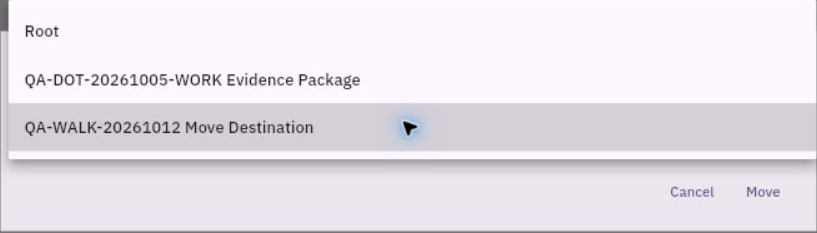
Direct inherited and broad access
A successful organisation check establishes the intended location and item identity. It does not establish that the contents changed or that the audience stayed the same. If a result is unclear, inspect the actual old and new locations before repeating the move. Avoid creating a second folder or uploading the file again as a substitute for resolving the first operation.
Read all sources of access
The Share dialog has People and Link Sharing. People shows direct and inherited entries. A direct grant applies on the file; an inherited entry comes from a parent such as the destination folder. Workroom-level authority can also affect what a person can do. Evaluate these sources together rather than reporting only the smallest-looking role.
The role selector offers Viewer, Commenter, Editor and Owner. Choose according to the required task, not convenience. Someone asked to read the checklist and return feedback in Chat does not need to edit the source or own it. Viewer is the intended direct role for that reading task. If someone must comment within a document or change its contents, first confirm the appropriate capability for that file type and the authority to grant it. Role labels alone do not prove every editor supports the same actions.
A direct Viewer entry plus an inherited Editor entry is not evidence of Viewer-only effective access. Identify the inherited source and resolve it with its authorised owner. Adding another Viewer grant will not demonstrate that the broader source disappeared. Similarly, checking from an owner account cannot demonstrate a restricted recipient’s experience.
Link Sharing exposes Anyone with the link can access and All workroom members can access. These are broad audience controls, not requirements for copying a link. Keep the actual intended settings; do not turn them on just because a recipient has difficulty opening a file. Both being off does not establish that only one person has access: direct, inherited and workroom rights still matter.
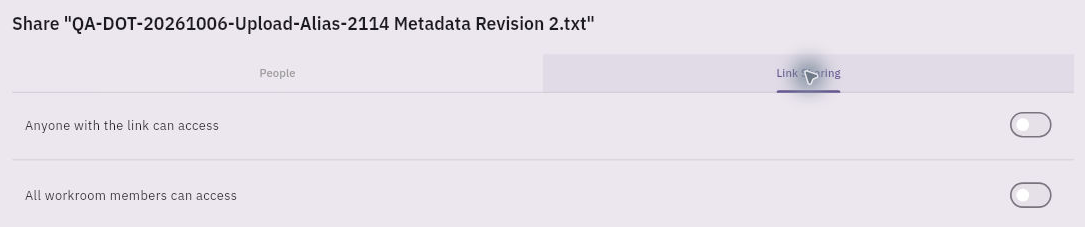
Named grants and saved audience verification
Grant a named person deliberately
Before searching, confirm the exact item, purpose, verified recipient and intended role. The Search users by name or email field helps locate the account; compare the full identity, especially where names are similar. Read the role selector next to the search field. Viewer was shown as a default in the demonstrated workflow, but you must check the actual selection instead of relying on that default.
Selecting a search result can commit the grant immediately. In the demonstrated workflow, the person appeared under Direct access without a separate Save or Share confirmation. Close only dismissed the dialog. Do not click a person merely to inspect their details while expecting a later approval screen. If identity, role or authority is uncertain, stop before selecting the result.
For an authorised grant, select the verified person once and inspect the resulting direct entry and role. Close, reload, retrieve the same item and reopen Share to read the retained audience. Check inherited entries and both broad settings again. This establishes the saved configuration; it does not establish that the recipient opened the contents or has only that direct role’s powers.
If you selected the wrong person, stop further communication and treat it as a possible disclosure. Ask the authorised owner to correct the exact saved entry through the supported route. Closing the dialog or clearing the search field does not demonstrate revocation. If the interface outcome is uncertain, reopen before retrying; do not grant a wider role or a public link to force a successful-looking result.
Practice: create or reuse an approved practice folder, inspect its audience, move the harmless checklist and recheck the file in its new location. With an agreed practice partner, plan the least necessary direct role and make the grant only when authorised. Expected result: a confirmed destination and an accurately described saved audience, including inherited rights. Recipient opening is the separate next step, not an assumption hidden inside “shared”.
Turn what you learned into the way the team works.
Mark this lesson complete once the workflow exists in your workspace—not simply when you reach the bottom.