Files course 01 — Find, upload and recognise the right file
Learn how Files separates an item’s identity, contents, location and audience, then upload a harmless working file and find it again without mistaking a status indicator for a completed handoff.
Part of Files module course
In this lesson
File identity workspace navigation and upload
Learn how Files separates an item’s identity, contents, location and audience, then upload a harmless working file and find it again without mistaking a status indicator for a completed handoff.
In this chapter
- Start with the four questions
- Read the Files workspace
- Upload one deliberate source
- Interpret status, name and preview separately
- Make retrieval repeatable
Start with the four questions
A useful file is more than a name in a list. Identity means the exact stored item in the correct workroom. Content means the information and revision inside it. Location means its folder. Audience means the people able to use it and the source of their rights. Keep these questions separate throughout this course: a correct folder does not establish correct access, and a green status does not establish correct contents.
For practice, prepare a small local text file named Workshop-checklist-r01.txt. Put the same revision marker in its first line, followed by the workshop purpose, three agenda items and one question for a reviewer. Use made-up, non-sensitive material. A name with purpose and revision is easier to distinguish than several files called “final”. Choose an agreed training workroom and a folder you are allowed to use before uploading anything.
A filename is not necessarily unique. Similar names can exist in different folders or workrooms. Compare the workroom, complete name and breadcrumb, and retain the application’s actual item link when a later handoff needs it. Do not construct a link from a guessed identifier. A file link locates an item; it does not by itself give permission.
Read the Files workspace
Open Files and use Home as the starting point. The Browse section includes Home, Starred, My Files, Shared with Me, Bin and Synced. These are different ways to locate material, not interchangeable proof of ownership or access. My Files helps you retrieve your working items. Shared with Me is the place to look for material shared to you. Starred is a shortcut collection: starring an item does not move it into a project folder. Bin and Synced are navigation destinations; do not infer a restore procedure or synchronization guarantee from their names alone.
The workspace offers Grid, List, Tree, Detail and Table views. Choose a view that makes the question you are answering easy to inspect. Grid helps recognise a card and its status; a row-oriented view can make complete names easier to compare; a hierarchy or breadcrumb helps establish location. Changing the view is not an upload, move or access change. If a filename is truncated, open a view or item context where you can read it fully before acting.
Quick Actions includes Upload Files, New Folder, New Doc, New Sheet and New Deck. There is also an Upload entry at the top right of Home. The latter three creation labels indicate document entry points; this lesson uses the demonstrated local upload route rather than assuming every editor or file format works identically. Chapter 2 covers folder creation and moving an existing item.
Upload one deliberate source
- Confirm the active workroom and intended location. Prepare the exact local file first, including its internal revision marker.
- On Home, choose Upload or Quick Actions → Upload Files. In the operating-system chooser, select the actual file row with the complete name and extension. Selecting a similarly named recent file is not equivalent.
- Confirm the chooser once. Allow the upload to settle rather than selecting the same file repeatedly while the screen is changing.
- Locate the resulting item in Files. Use My Files and a suitable view if Home does not make the new item easy to recognise. Compare the full name, not only the first few words.
- Read its displayed status. Then navigate away and return to the same item to make sure you can retrieve it again.
If the operation appears uncertain, look for the exact item before retrying. A second upload can create another item and make later review ambiguous. If there is a clear failure and no resulting item, resolve the stated cause before a permitted retry. Never use a real confidential document simply to see whether an upload route works.
Readability and reliable retrieval
Interpret status, name and preview separately
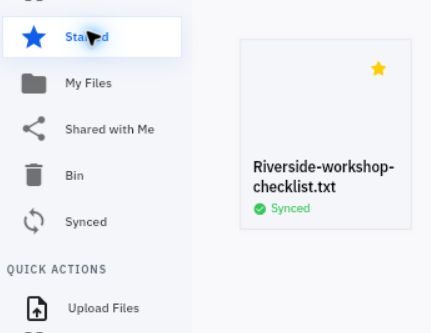
Synced is the application’s displayed synchronization state. It is not a content approval, a malware assessment, proof that a preview rendered or evidence that a colleague read the file. A yellow star identifies a retrieval shortcut, not a grant of permission. In the image, the card is available through Starred and displays Synced; neither fact establishes a project-folder location.
Read the extension in the filename separately from any type label shown by Detail or Table. If a .txt name and a different displayed type do not agree, record the mismatch rather than assuming the application converted the contents. The exact item and readable contents matter more than a convenient interpretation of a label.
Open the item through the normal permitted route and compare the internal revision marker with the filename. A successful check should establish both the intended revision and a substantive detail, such as the second agenda item. If preview is unavailable or blocked by organisation policy, stop at that boundary. Do not switch origins, enable public links or try unrelated download routes to defeat the restriction. An uploaded item can exist while its readable-content check is still incomplete; ask the authorised owner for the permitted way to review it.
Some viewer surfaces expose Rename, Full Screen, Import, Save As and Share. Treat each as a separate action. Seeing Import or Save As does not establish that a new upload replaces the stored original or creates a revision history. Do not experiment on a live business file to discover those effects.
Make retrieval repeatable
Open the item’s three-dot menu and use Star if you want a frequent-use shortcut. Confirm it appears in Starred, then return to its actual folder when you need to establish location. If the menu offers Unstar, the shortcut is already set; un-starring changes the shortcut, not the file’s contents or audience.
For your practice file, answer four questions before continuing: Which workroom and complete filename identify it? Which internal marker identifies its contents? What folder or breadcrumb establishes its location? Has its audience actually been inspected? “Uploaded and Synced” answers none of the last three on its own.
Practice: upload the harmless r01 file once, retrieve it after leaving Files, and compare its name with its internal marker through an allowed viewer. If the viewer is blocked, record the content check as pending rather than pretending success. Expected result: one identifiable stored item you can find again, with synchronization and content-readability outcomes kept distinct. You are now ready to organise it and inspect access.
Turn what you learned into the way the team works.
Mark this lesson complete once the workflow exists in your workspace—not simply when you reach the bottom.