Open a chat with the right person
Choose the intended teammate and check the conversation before sharing your message.
In this lesson
Open a chat with the right person
Choose the intended teammate and check the conversation before sharing your message.
Before you start: Know who needs to receive your request and use a workroom where you can contact them.
Choose the right conversation
Use a direct conversation for a question or review involving one person. For a wider discussion, first check the audience of the available shared conversation. A conversation name does not tell you everyone who can read it.
Chat works well for clarifications and agreements. Use a task or other work record when you need an owner, due date and tracked completion; you can discuss that record in Chat without losing its place in the workflow.
Steps
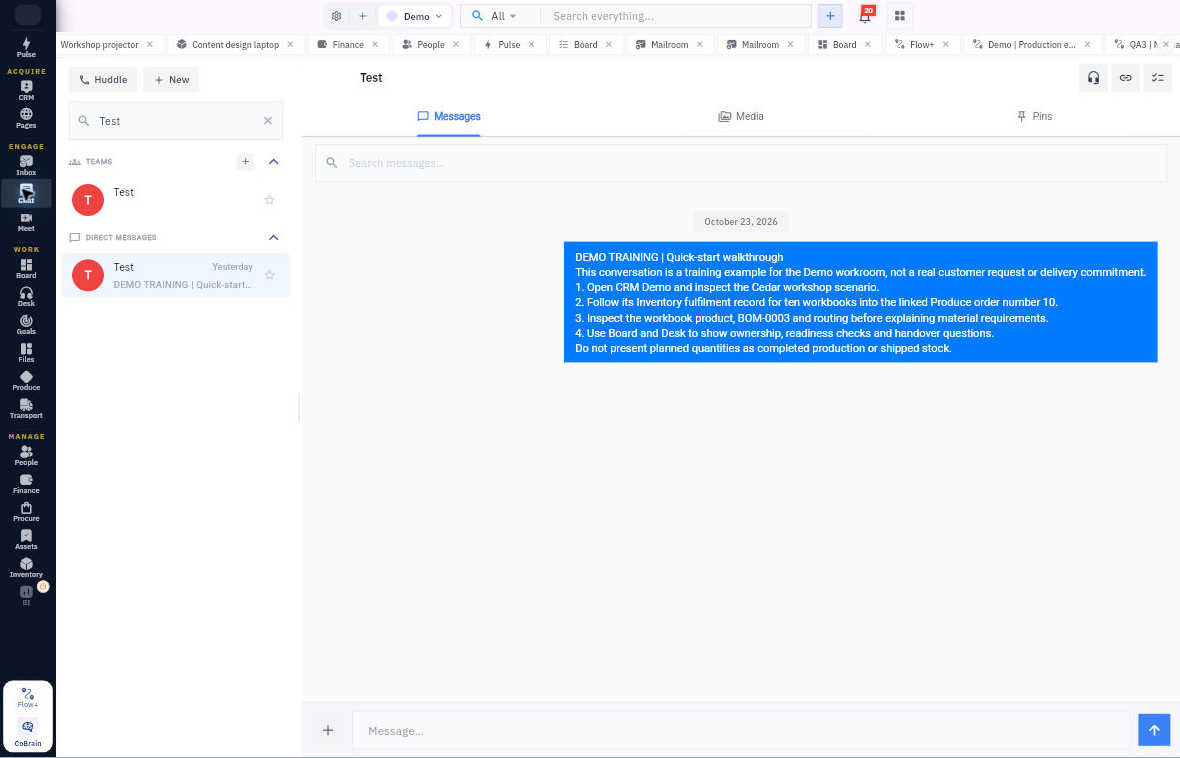
- Check the selected workroom, then choose Chat in the left navigation. Wait for the conversation list to finish loading.
- Select + New. In New Chat, use Search by name or email to find the intended teammate.
- Compare the full displayed identity with the person you need. If two people have similar names, check the complete identity rather than choosing the first match.
- Select the correct person. Check the conversation header again; the conversation should also be available under Direct Messages.
- Open Messages and read any relevant context before typing. Media and Pins are separate tabs for material associated with the conversation.
Expected result
The correct conversation is open and ready for your request. You have checked who will receive it before sharing information.
Remember
A direct conversation is not a guarantee of secrecy. Share only what the recipient needs, and check that they can access any file you intend to link.
Continue learning
In this series: Work together in Chat — guide 1 of 6.
Turn what you learned into the way the team works.
Mark this lesson complete once the workflow exists in your workspace—not simply when you reach the bottom.