Board course 05 — Reviewing work through views, filters and supporting evidence
Daily review is a decision about what needs attention next. Board provides several representations of the same work, but each has a scope. This chapter teaches how to read that scope, reconcile discrepancies and keep the right evidence with the work.
Part of Board module course
In this lesson
Review scope and source records
Daily review is a decision about what needs attention next. Board provides several representations of the same work, but each has a scope. This chapter teaches how to read that scope, reconcile discrepancies and keep the right evidence with the work.
In this chapter
- Choose a view for the question
- Use date views and grouping without inventing a schedule
- Read filters before interpreting an empty list
- Find the exact task
- Keep evidence and version identity together
- Connect work without inventing progress
- Make a useful daily decision
Choose a view for the question
Start with the exact Board and read the current view and filters. Table is useful for comparing full titles, project references, dates and assignees. Kanban arranges task cards by workflow state. Dashboard summarizes counts and distributions. Calendar, Timeline and Gantt answer date and grouping questions. Workload is also available in navigation; do not assume a capacity algorithm merely from its name.
Completion counts and Kanban interpretation
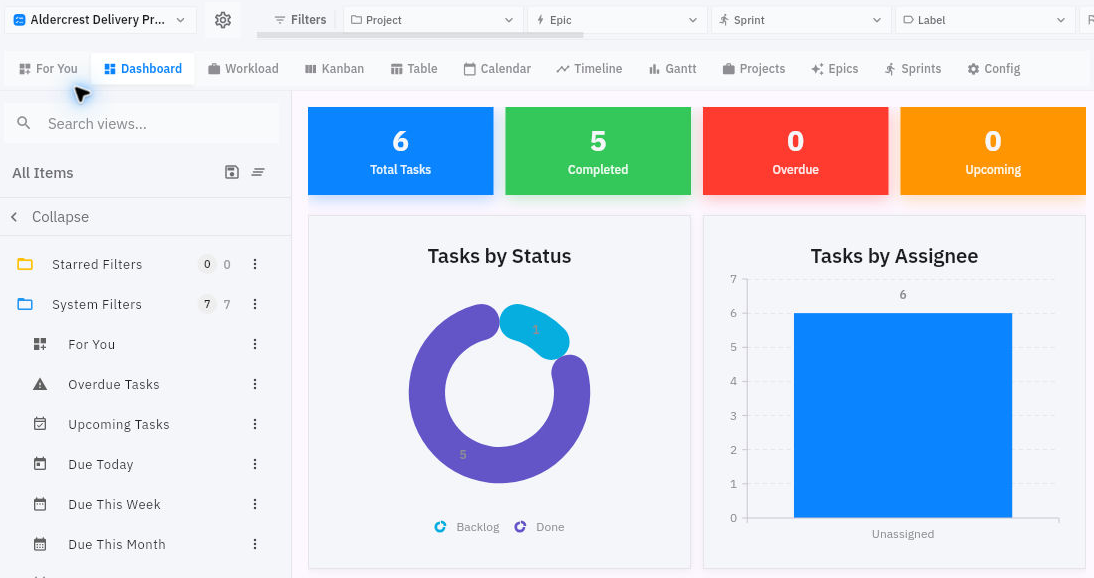
The example dashboard shows six tasks and five completed. That is a task-state summary, not five-sixths of business value or receiving acceptance. One remaining task can be the essential delivery gate. A percentage becomes useful only when you state what is being counted.
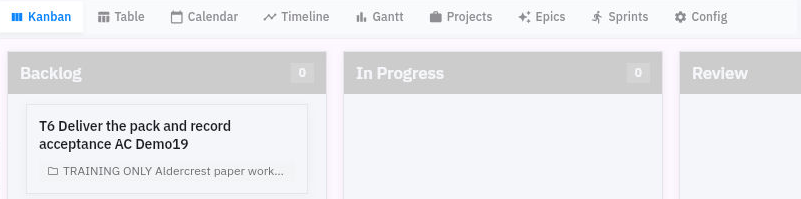
Kanban's card placement and header badges can disagree. In the training example, visible cards populated Backlog and Done while the header badges showed zero. Do not silently choose the more convenient number. Compare the exact cards with independently opened tasks and report any unresolved discrepancy.
Date views, evidence and daily review
Use date views and grouping without inventing a schedule
Calendar has day, week, month and quarter choices, navigation arrows and Today. An empty month can coexist with tasks whose date fields are blank. Check the selected period and exact task dates before concluding that work is missing.
Timeline provides View by day, week, month or quarter, Sort by, an ascending/descending direction control and Today. Sort choices include Title, Status, Assignee and Due Date. A bar is not sufficient evidence of a scheduled duration: the training view showed bars while the corresponding rows explicitly said No due date. Open the task's actual date fields to settle the saved plan. This course does not establish drag-to-reschedule behavior or how blank dates are ordered.
Gantt separates Tasks, Epics and Projects display scopes. Task scope has Search tasks; project scope has Search projects. Group by offers None, Project, Sprint and Assignee. Grouping tasks by Project displays the included task rows under a project heading; it organizes the display without creating or changing their Project relationships. A Project filter instead constrains which records are included. Use grouping when you want to account for the visible tasks together, and inspect filter selection when you need a narrower population.
In Projects scope, Day and Week controls provide a different time view from a task list. A project bar can agree with its stored start/end dates while its tasks remain undated. Confirm the full project identity and exact endpoints in the project editor rather than reading a clipped bar as precise evidence. Neither an empty plot nor a project bar proves dependency-driven scheduling, task-date inheritance or completed delivery.
Read filters before interpreting an empty list
The view header includes Project, Epic, Sprint and Label filters. Other controls may extend beyond the visible width. The sidebar includes Search views, Starred Filters, System Filters and My Filters. Search views finds views; it is not the same operation as searching for a task.
System Filters include For You, Overdue Tasks, Upcoming Tasks, Due Today, Due This Week, Due This Month and Due Tomorrow. A weekly view answers a date-scoped question, not “does this project contain any work?” Do not assume its exact date-boundary algorithm when the interface does not state it.
A High-only Priority filter can hide normal-priority tasks. Before diagnosing missing work, note the active filters, then clear the temporary condition through its supported control when appropriate. Let the result settle and retrieve the exact task independently. An empty list does not prove deletion, and a momentary loading row does not prove inclusion.
Sorting Table by Title changes row order, not priority or work sequence. Horizontal scrolling reveals additional columns; preserve row identity before comparing values. A label filter can omit an unlabelled task that still belongs to the project, so use the relationship itself when testing membership.
Find the exact task
Use global search with Board scope, enter the complete title, press Enter and wait for settled results. Match the full task identity and selected Board after opening it. A familiar word or shortened title is not enough.
For daily review, ask four questions of each relevant task: What output is expected? What is its current state? What evidence or dependency prevents the next step? Who has the next authorized action? This produces a useful decision instead of a recital of card counts.
If the task is Done but the actual output is missing, inspect the original acceptance condition and correct the workflow through the supported authorized route. Do not weaken the description merely to make the state appear justified.
Keep evidence and version identity together
Related Documents offers Attach from Vault and Upload file where supported. A retained filename associates a document with the task; it does not establish the full body, correct revision, audience or receiving readability.
For the welcome-note review, keep the exact text or version identifier with the review task. If using a stored file, verify the intended file identity and body through the permitted viewer. Attach the existing correct version rather than uploading duplicates because a preview is slow. After updating the task, reopen it and inspect the retained association.
Do not broaden sharing to bypass a denied preview. If you can read a supplied local copy but not the stored copy, you may review the supplied text while keeping stored-copy readability unresolved. The two claims are different.
A useful review comment names the version, the criterion, what was observed and the decision. “Looks good” is not enough. For the note example: “Version 1 states the purpose, specifies paper and pen, and gives the three named boxes as the first action. These text checks pass; receiving readability has not yet been checked.”
Connect work without inventing progress
Linked Entities > Add link opens a structured link dialog. With Goals selected as the module, entity choices include Goal, Objective and Key Result. Choose the actual intended type, then search and match the complete destination. A similarly named Goal is not a Key Result.
A link shows contribution or context; it does not prove that a goal's progress changed automatically, that the task grants access to the destination, or that its metric has been satisfied. Open the destination through the supported link and read its own progress and measurement basis.
Make a useful daily decision
Suppose the project contains three tasks, but the High filter shows only delivery. The draft is readable, the review is unfinished and the receiver has not checked the final text. The next action is not “complete the only visible task.” Clear or account for the filter, retrieve review, and preserve delivery as pending until its condition is met.
You are ready to continue when you can explain both the current scope and the record-level reason for the next action. Summary counts should support that explanation, not replace it.
Turn what you learned into the way the team works.
Mark this lesson complete once the workflow exists in your workspace—not simply when you reach the bottom.