Board course 03 — Creating projects, tasks and useful groupings
A good form entry preserves the meaning of the work. This chapter maps the project, task and epic editors and shows how to verify relationships after saving. Use the welcome-note plan from chapter 1; do not copy the screenshots' record names.
Part of Board module course
In this lesson
Project, task and epic preparation
A good form entry preserves the meaning of the work. This chapter maps the project, task and epic editors and shows how to verify relationships after saving. Use the welcome-note plan from chapter 1; do not copy the screenshots' record names.
In this chapter
- Give the project an outcome and boundary
- Write a task that can be checked
- Save and verify project membership
- Decide whether an epic or hierarchy helps
- Check the result before expanding the plan
Give the project an outcome and boundary
Open Board > Projects > New Project. Confirm Select board before entering Project Name and Description. Describe the outcome, what is included, what is excluded and the completion condition.
For the practice project, enter a description such as: “Produce a three-sentence welcome note, review purpose/materials/first action, and make the agreed version readable to the authorized practice receiver. Training only; no live session. Complete only after the receiving condition is met.” Keep a time-of-day deadline in the description if needed; a date field alone does not preserve it.
The Planning section includes Start Date, End Date, Estimated Hours and Logged Hours. Planned, Ongoing and Completed are project status choices. Select Planned for unstarted work. Enter an estimate only from your plan; leave actual hours unrecorded until work is performed and measured.
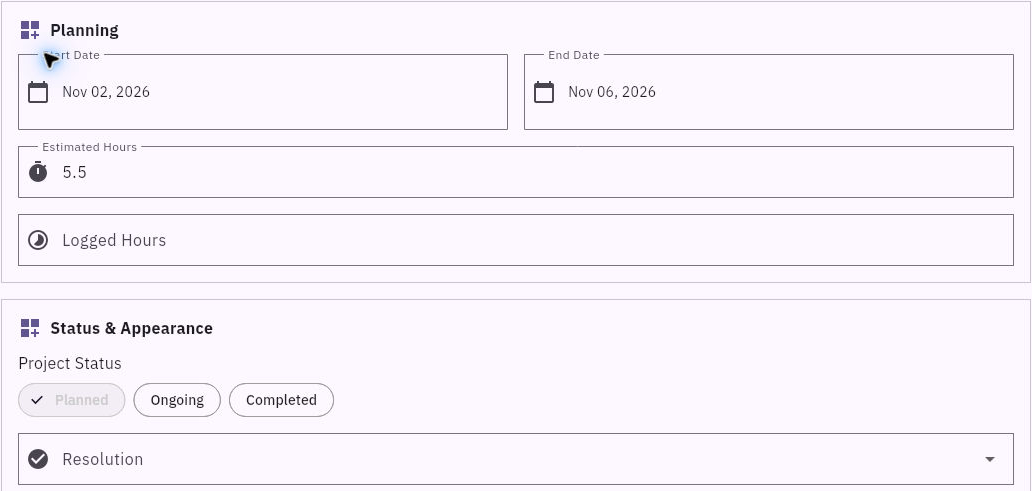
Project components and task preparation
The new project's Components area may say Save project first to manage components. Team includes Assign Members. Related Documents, Dependencies and other lower areas serve different purposes; their presence does not require filling them. Save the project once, then return through Projects and open the exact row to compare the complete description, Board, dates and state.
Write a task that can be checked
Use the bottom-right + > Task to open Create New Task. Confirm Select board, then enter Task Title and Description. For the first task, the complete brief can be:
“Draft the welcome note. Input: the three checks are purpose, materials and first action. Output: three sentences in one note. Draft: We will practise turning a request into checkable work. Bring one sheet of paper and a pen. Begin by drawing boxes labelled Output, Owner and Check. Acceptance: each sentence answers one check, the materials are specific, and no live service or customer data is required. Review the complete version before delivery.”
The title finds the work; the description makes it actionable. A title such as “Welcome note” without the input and acceptance condition forces the next person to guess.
| Task area | Fields or controls | How to use them |
|---|---|---|
| Identity | Select board, Task Title, Description | Establish the exact work and complete brief |
| Status and Planning | Task Status, Label, Planned Start Date, Due Date, Priority, Resolution | Keep workflow, dates, classification and urgency distinct |
| Sizing and effort | Story Points, Estimated Hours, Logged Hours | Relative size, planned labor and measured labor are not interchangeable |
| Relationships | Project, Component, Sprint, Epic, Assign Members, Parent Task | Select only relationships that exist and serve the plan |
| Supporting context | Dependencies, Related Documents, Linked Entities, timeline | Connect work and evidence without replacing its brief |
Task states shown in the editor are Backlog, In Progress, Review and Done. Start planned work in Backlog. The interface does not itself prove that all acceptance checks are enforced before Done.
Save and verify project membership
In Relationships > Project, select the exact approved project. Review Board, title, description, state and Project before Create Task. Navigate away and retrieve the task independently, using Board-scoped global search with its complete title if appropriate. Read the entire description, not just a search snippet.
Return to Projects, expand the intended project and compare the task row. If membership is added later, use the existing task's Project selector and Update Task once, then perform both checks again.

Membership checks and useful groupings
A repeated case name or suffix does not create membership. If the selected Project is wrong, correct the same authorized task rather than creating another one. After a permitted move, verify inclusion in the intended project and removal from the former project; do not assume one-sided readback proves both.
Decide whether an epic or hierarchy helps
Epics group work for a useful question. For a tiny three-task note project, an epic adds little. For many note variants, an epic might group the drafting tasks while the project still includes review and delivery. Do not add an epic simply because the form offers it.
Board > Epics > New Epic opens the creation route. Observed fields include Board, Project, Sprint, Epic Name, Description, Assign Members, dates, Story Points, Estimated Hours and Logged Hours. Epic status choices are Planned, In Progress, Completed and Cancelled. Epic Color, Priority, Resolution, Label, documents and dependencies provide additional context. Existing saved editors may show Component, timeline and Comments that do not appear identically in the blank creation form.
The task's Epic field is separate from Project. Choosing an epic should not silently replace the project relationship. Verify the selected epic on the task and the corresponding membership view when available. If that save or reverse view cannot be checked, do not report the membership as established.
Parent Task is also distinct. A numbered list in Description is still text, not verified native subtasks or a checklist. Use separate tasks when separate ownership and acceptance are needed; do not assume hierarchy behavior from a visible selector alone.
Check the result before expanding the plan
Your first milestone is one retained project and one task with its complete brief and verified Project relationship. The draft can now be reviewed without a separate workbook. Add review and delivery tasks with their own outputs and criteria, not copies of the drafting brief.
If a save times out, retrieve the exact candidate and compare fields before retrying. If the current form differs materially, stop the affected edit and retain the planned input. A missing field is not permission to repurpose an unrelated relationship.
Turn what you learned into the way the team works.
Mark this lesson complete once the workflow exists in your workspace—not simply when you reach the bottom.