Board course 02 — Preparing the Board and understanding configuration
A well-prepared Board has a distinguishable identity, an appropriate audience and a vocabulary that people can apply consistently. This chapter explains the Board form and Config screens. Configuration affects shared work, so inspect before deciding whether a change is needed.
Part of Board module course
In this lesson
Board setup and configuration prerequisites
A well-prepared Board has a distinguishable identity, an appropriate audience and a vocabulary that people can apply consistently. This chapter explains the Board form and Config screens. Configuration affects shared work, so inspect before deciding whether a change is needed.
In this chapter
- Create or reuse the correct Board
- Understand identity and access
- Give labels and custom fields clear meanings
- Keep workflow vocabulary separate
- Check your setup decision
Create or reuse the correct Board
From an existing Board, the bottom-right blue + opens Create New, with Task, Epic, Project, Sprint and Board choices. Board opens Create New Board. Prefer an approved existing training Board if it already has the right scope.
| Field | Meaning and choice |
|---|---|
| Board Name | A distinguishable working name; add your practice suffix rather than reusing a shared demonstration name |
| Description | Purpose and boundaries of the work; explain what belongs here |
| Assign Members | Accounts associated with the Board; select only verified, approved people |
| Board Custom Fields | Optional Board-scoped information under Additional Information; not automatically task fields |
For this course, a suitable description is: “Training only. Prepare, review and deliver one fictional welcome note. No real customer data or independent receiving acceptance is implied.” Review the name, description and selected audience before Create Board. After saving once, leave the form, select the exact Board again and compare its identity and description.
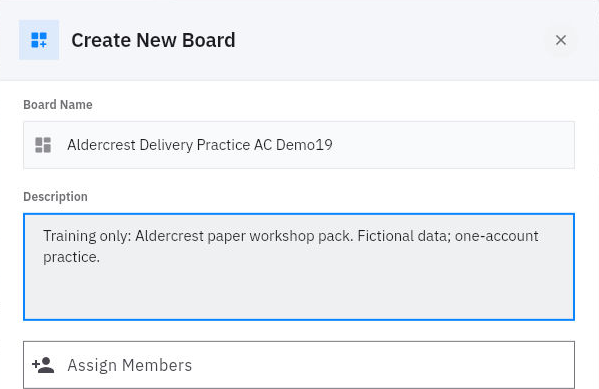
Creation readback and configuration choices
If creation times out, search or reopen the intended Board before retrying. A missing success message does not prove that the creation failed. Repeated submission can create duplicates.
Understand identity and access
Open Config > Info to read the Board's name, description, Board Key and Board UUID. Edit Board and Delete Board are separate changes, not inspection controls. A stable identifier distinguishes a record; it grants no access.
Config > Access shows listed accounts and roles, with Add Member, account search and role controls. The inspected interface included Admin and Member labels. Their presence does not define every permission or establish that another person can read an attached document.
Board membership, task assignment, watching and receiving acceptance are different relationships. A member may not own the task. An assignee may not be able to open its supporting file. A reviewer needs the correct version and authority to review; membership alone does not supply either.
Use only the audience needed for the work. If a recipient needs the final note but not the whole planning Board, use the approved delivery route rather than adding them to the Board simply for convenience. A one-account exercise can verify your own access, not independent access by somebody else.
Give labels and custom fields clear meanings
Config > Labels lists available labels and New Label. The new-label form has Label Name, a color palette and Preview label, followed by Cancel and Create. Color helps recognition, but the text should carry the meaning.
For example, Welcome note can mean all work belonging to this practice output. It should not mean both “belongs to the note” and “accepted.” A label that combines scope and completion becomes ambiguous when a draft still needs review.
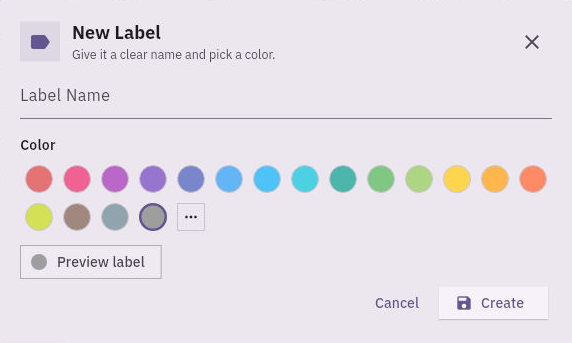
Custom-field scopes and value types
Config > Custom Fields separates Board, Project, Epic, Sprint and Task scopes. Choose the record family first. New Task Field has Field Name and Field Type; observed types are Text, Number, Date, Checkbox, Dropdown and Attachment. Its helper identifies Task forms in this Board.
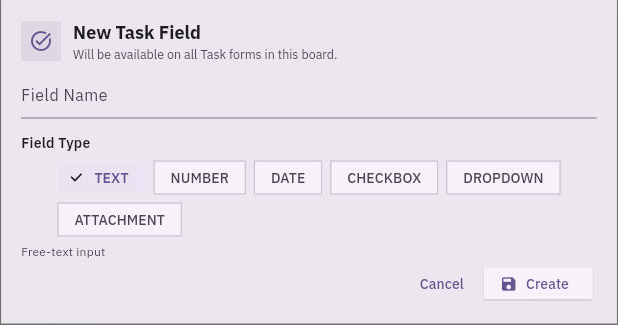
Field meaning and configuration practice
A Text field called Source revision can hold “v1” or “v2.” It does not establish that v2 was reviewed. A blank value means not recorded, not “latest.” Choose Number for a quantity only when its unit and interpretation are clear; a checkbox should represent one defined yes/no condition, not an entire acceptance process.
After an authorized definition change, check the definition, its appearance on the intended form, a saved value, and retrieval separately. The form's existence alone does not establish all four behaviors. Do not assume unseen Required, Default or Description controls.
Keep workflow vocabulary separate
Config also includes Statuses, Stages & Rules, Priorities, Resolutions and Activity Log. Statuses has separate record scopes. The observed Project vocabulary is Planned, Ongoing and Completed; tasks use Backlog, In Progress, Review and Done. Priorities include Low, Medium, High and Critical. Resolutions include Duplicate, Fixed, Unresolved and Won't Fix.
Status describes a workflow stage. Priority expresses attention or urgency. Resolution classifies a disposition. None independently proves that a reader accepted the output. Activity Log records events, not the quality of the result.
Config > Statuses > Task > New Status opens New Task Status, with Task Status Name, a color palette/preview and Terminal state, followed by Cancel and Create Status. The definition applies across tasks on the Board, not only the current task. The terminal helper says tasks or epics cannot move out after reaching the status; treat that as a consequential policy choice, not demonstrated enforcement or a reversible experiment.
Stages & Rules is a shared configuration feature, not a harmless switch to try during ordinary training. Managing transitions requires the feature to be enabled; do not enable it merely to follow this course. When available under the enabled Tasks scope, its transition form includes From status, To status, Enabled, Assignee only, role choices and Priority/Label filters. A saved rule and its enforcement are separate tests; this course does not ask you to enable or test rules on shared work.
Check your setup decision
You want to find all welcome-note tasks and record which revision each uses. A scope label plus a Task-scoped Text field can serve those two questions. Neither should replace the task's complete description or acceptance check. If the extra field adds no useful recurring information, keep the revision in the brief instead.
Before continuing, confirm the exact Board and approved audience. Keep unresolved access or configuration questions visible rather than solving them by widening permissions or changing shared definitions.
Turn what you learned into the way the team works.
Mark this lesson complete once the workflow exists in your workspace—not simply when you reach the bottom.