Check whether your reporting source is ready
Find the intended BI space and dataset before relying on a dashboard.
In this lesson
Check whether your reporting source is ready
A dashboard needs usable source data as well as a name and layout. Check the source before interpreting a blank page or an unexpected total.
Before you start: Know the business question and the records needed to answer it. You need access to the relevant BI space and data.
Find the reporting context
1. Open BI → Explore and check Switch BI Space. Choose the space containing the report you intend to use.
2. Open the dashboard and read its title, description and widget count. A saved draft with no widgets is a starting structure, not a populated result.
3. Use Edit to open Studio when you need to inspect its report and data setup. Check the exact dashboard name before changing anything.
Check the source
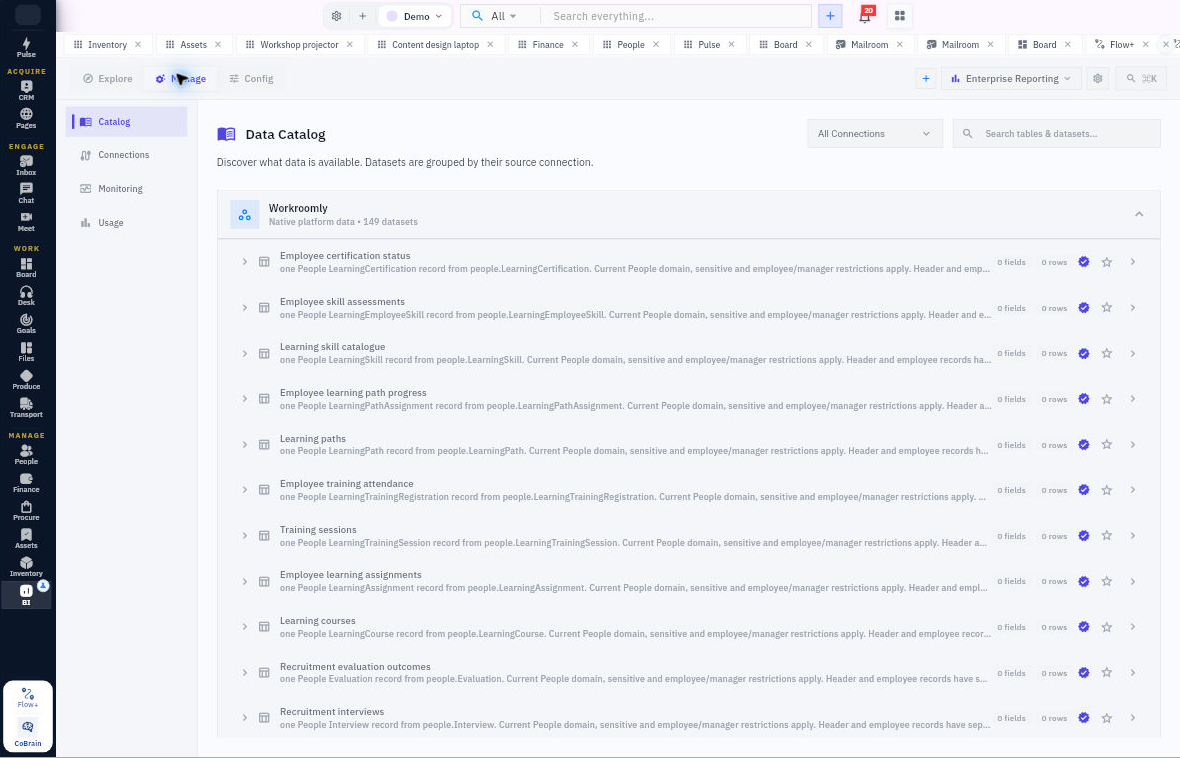
4. In BI, open Manage → Catalog to inspect available datasets. Read the dataset’s description, fields and row information; use the search to find the relevant source rather than choosing a similarly named dataset.
5. Check that it contains the fields your question requires. For a task measure, that might include a stable task identity, status and the relevant date. A field list alone does not prove that the expected records are available.
6. If a required source is marked Not ready or cannot supply the needed data, ask the reporting owner to resolve that source. State the exact dataset and missing fields or records rather than requesting “all the data.”
You should know whether the report has the source it needs. An empty report or zero displayed rows is not automatically evidence that no business activity exists.
Do not publish a blank report as a completed analysis. First check a small known result against the actual source records.
Continue learning
In this series: Build useful business reports — guide 2 of 8.
Turn what you learned into the way the team works.
Mark this lesson complete once the workflow exists in your workspace—not simply when you reach the bottom.