Meet course 02 — Plan the appointment and join deliberately
A useful appointment has a clear outcome, correct interval and intended audience. Joining adds a different set of checks: destination, current access, media choices and actual provider connection. This chapter explains both without treating a calendar save as a successful call.
Part of Meet module course
In this lesson
Appointment context and editor
A useful appointment has a clear outcome, correct interval and intended audience. Joining adds a different set of checks: destination, current access, media choices and actual provider connection. This chapter explains both without treating a calendar save as a successful call.
In this chapter
- Open the appointment editor in context
- Set the exact interval and purpose
- Choose destination and guests independently
- Reopen the appointment and compare the room schedule
- Check prejoin before entering
- Test only the capability the meeting needs
- Practise the readiness decision
Open the appointment editor in context
Scheduling is available through Inbox → Calendar. Read the current calendar date and view. The illustrated add control opens New Event; a Schedule meeting entry point can also appear in a business-record context. When starting from another module, check any preselected record rather than linking an unrelated customer to a practice appointment.
The New Event form includes organiser/calendar, Event title, Start, End, duration shortcuts, Repeat and Meeting type. Scroll to inspect description/notes, destination and Guests rather than assuming fields below the viewport are empty. Wait for a room selector to load before using it.
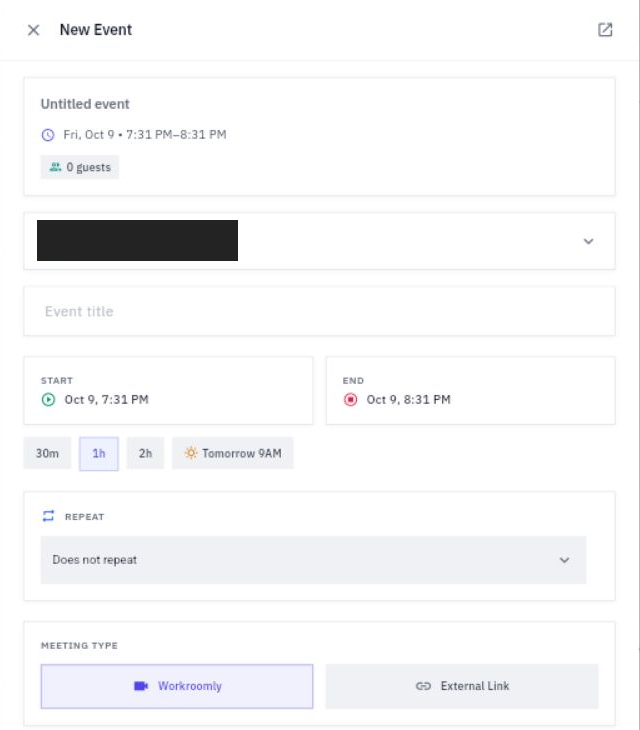
Timing audience joining and media checks
The pictured form is an input example, not an already saved 30-minute meeting. Read your actual values, including the selected organiser, before entering the plan.
Set the exact interval and purpose
Write the date, start, end and named timezone before using shortcuts. For a 30-minute rehearsal beginning at 09:15, the intended end is 09:45 in the same timezone. A 30m shortcut can help, but reread both endpoints. Tomorrow 9AM depends on the interface context and is not a substitute for checking the date.
Use a specific title and description. For the sample-label review, state the decision to make, the two material versions, the agenda and the finish condition. Keep confidential details out of a broadly visible calendar title. A short agenda might allocate five minutes to criteria, fifteen to comparison and ten to the decision and actions; the total must fit the appointment.
For a one-off rehearsal, set Repeat to Does not repeat. A weekly setting creates a different commitment and needs its own review of the recurrence and actual occurrences. Do not accept a retained value from an earlier form merely because it looks plausible.
Choose destination and guests independently
Meeting type distinguishes Workroomly from External Link in the illustration. For Workroomly, select the exact approved room once available. For an external destination, use a verified approved link; do not guess an address or change provider because an internal service is temporarily unavailable.
Review the organiser and Guests explicitly. Zero guests can be appropriate for solo practice, but it does not make the room private. For real participants, verify identities and the invitation scope before sending. Saving an appointment, dispatching invitations, recipients receiving them and accepting them are separate outcomes.
Review all fields before the authorised create/save action: title, calendar, date, timezone context, endpoints, recurrence, room/link, description and guests. Save once, then inspect the existing result before considering a retry.
Reopen the appointment and compare the room schedule
Find the exact title on its calendar date and reopen the saved editor. Compare the complete intended fields. Open the selected room's Schedule where available and identify the same event rather than relying on a similar title.
If Calendar and the saved editor agree on 09:15–09:45 while Schedule shows a one-hour interval, preserve the mismatch. Do not lengthen the correct event to make the secondary display look consistent. Check identity and timezone information, then ask the responsible organiser or support process to reconcile it.
For an authorised change, edit the existing event through its supported route and verify changed and unchanged fields afterward. Do not create a replacement merely because a view looks stale. If Cancel Event removes the appointment from Calendar while a room card still offers Join, do not join the cancelled event or repeat cancellation as a refresh.
Check prejoin before entering
Use the valid current appointment or the approved room's Meet entry. Confirm the room identity and that the appointment has not been cancelled. A visible Join button is not evidence that this is the intended or still-valid meeting.
Before Join Meeting, read the prejoin states. For a media-off rehearsal, set Camera off and Microphone muted and verify both. Do not approve an unexpected media permission prompt simply to dismiss it. An in-app muted state describes that control; it does not prove every stored browser or operating-system permission has changed.
Select Join Meeting once when the entry is authorised. Wait for the provider interface and inspect your displayed identity and role. An open prejoin screen is not a completed join. Provider entry is not yet proof that hearing or speaking works.
Test only the capability the meeting needs
If an audio choice offers listen-only, it avoids microphone participation but still requires a working audio connection. An audio or ICE timeout identifies a failed stage; it does not establish a unique root cause. Do not report successful audio merely because the conference page opened.
Where the application offers Open in new tab, that can provide an alternate view of the same intended conference. Use only the supplied route when appropriate, not a guessed URL or altered browser security. A working host control in a new tab does not by itself fix an audio failure.
For an authorised two-person media check, define a harmless spoken phrase and an explicit listener acknowledgment, then reverse direction if both-way audio is needed. Screen sharing, camera, recording and transcription each need their own intended test and approval. A media-off entry does not certify them.
Practise the readiness decision
Your correct appointment is retained, prejoin shows camera off and microphone muted, and the provider opens. Listen-only then fails, and the reviewer has not joined. The accurate result is a saved plan and provider entry with working audio and reciprocal attendance still unestablished.
Keep those successful and incomplete stages separate. Do not change the meeting destination, invite extra people or disable safeguards to turn a limited result into a successful-call claim. The next chapter explains how to depart and reconcile the same session.
Turn what you learned into the way the team works.
Mark this lesson complete once the workflow exists in your workspace—not simply when you reach the bottom.