Flow+ course 02 — Configuring a complete draft and checking its saved definition
A canvas can show unsaved local edits. A saved revision can differ from a recovery copy. This chapter maps the demonstrated two-node build route and the checks that distinguish a proposed graph from a retained definition. Perform changes only in a separately authorized non-critical practice workflow.
Part of Flow+ module course
In this lesson
Draft construction and retained definition
A canvas can show unsaved local edits. A saved revision can differ from a recovery copy. This chapter maps the demonstrated two-node build route and the checks that distinguish a proposed graph from a retained definition. Perform changes only in a separately authorized non-critical practice workflow.
In this chapter
- Prepare the full definition first
- Configure the trigger and condition
- Connect actual ports
- Save once and independently reopen
- Specify real-data binding before claiming automation
Prepare the full definition first
Use a unique title and a description that states the boundary: “Inactive manual literal comparison; no messages, record changes, providers or schedules.” Search Workflows before creating so an earlier uncertain attempt is not duplicated.
The demonstrated route is Flow+ > Build workflow, enter title and description, then Save. That creates the workflow identity; it does not complete its graph or execute it. Reuse the intended existing practice draft when appropriate.
Write the expected graph before adding nodes: System Manual trigger; Control Flow If / Else; Number 4 equals Number 5; one next-to-input edge; no action nodes; caller access off; inactive. These are the fictional exercise values. The illustrated historical graph used 5 equals 5, so do not edit its shared record to match this example.
Configure the trigger and condition
In the Nodes panel, choose Trigger. Confirm TRIGGER, select Provider > System, then Manual trigger. Enter a meaningful Label and Description, retain Stop the run for this narrow design, and leave other-workflow calling off with no caller inputs. Save draft only when the change is authorized and complete.
Choose Condition from Nodes. Select Provider > Control Flow and Condition > If / Else. The label can be “Compare reviewed count,” but it does not read a count by itself.
| Condition setting | Literal exercise choice | Meaning |
|---|---|---|
| First Value source | Number | Numeric input type |
| Input method | Set a value | A constant, not retrieved data |
| First Value | 4 | Supplied classroom count |
| Operator | equals | Tests equality, not greater-than-or-equal |
| Second Value source / Value | Number / 5 | Supplied target |
| Containing body | Main workflow | Where this condition belongs |
| True / false outputs | No downstream nodes | Both routes end without business effects |
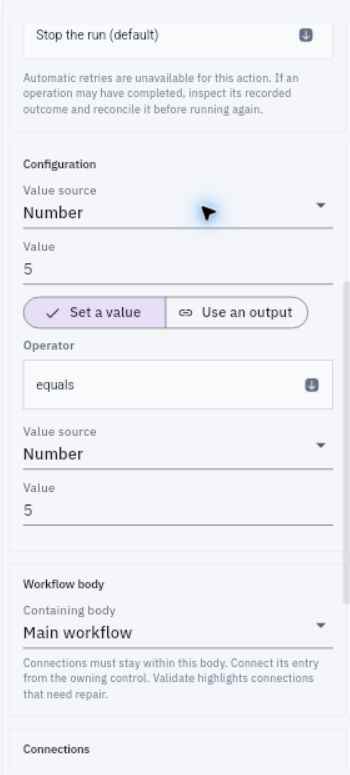
Output dependencies and saved draft checks
Use an output is different from Set a value. It requires a real supported source-producing step and the correct output field. Choosing it does not automatically bind a checklist, infer an ID or establish access.
Connect actual ports
Click the trigger's Output: Next step port, then the condition's Input: Input port. The inspector expresses the connection as next to input. If nodes overlap, moving their headers can make the graph readable; proximity alone does not establish an edge.
Leave true and false unconnected for this inert comparison. Count the graph: two nodes, one edge, no hidden action downstream. Inspect both nodes rather than assuming the visible label identifies the configuration correctly.
A false equality result is a valid condition outcome, not an execution error. Stop the run concerns errors; it does not mean ordinary false should be treated as failure.
Save once and independently reopen
Use Save draft and wait for the stated saved result. Leave or reload, return to the exact workflow by full title and compare the complete definition: inactive state, trigger/provider, caller permission, node labels, numeric operands, operator, containing body and exact connection.
Save draft may be disabled when nothing is pending. Do not create edits merely to enable it or restore an unrelated local copy. A Validate action without a persistent explicit success result is not proof that validation passed; saved and reopened is a different claim.
If saving reports a network error, inspect the saved definition before retrying. A later reopen can reveal that the intended change persisted despite the response failure. If the fields and revision match, do not save again for cosmetic reassurance. If they do not match or cannot be inspected, preserve the uncertainty and ask the responsible owner for the next decision.
Specify real-data binding before claiming automation
A future live count requires source identity, revision, read time, output field, type, access and freshness. Define missing, stale, negative and above-target values explicitly. A text label “Check five reviewed steps” plus literal 5 does not satisfy any of those requirements.
Prepare a test matrix: 4 versus 5 should be false; 5 versus 5 true; missing value should follow the agreed error/hold rule; an invalid negative count should not silently become valid. Those are business test expectations, not built-in validation guarantees or executed tests. The two-node literal graph lacks a data-source step and cannot demonstrate live retrieval.
Turn what you learned into the way the team works.
Mark this lesson complete once the workflow exists in your workspace—not simply when you reach the bottom.