Flow+ course 01 — Reading a workflow and defining its effect boundary
Flow+ turns a process definition into a graph of starts, decisions and possible actions. Learn to explain every part before saving or running it. The interface carries a Beta notice recommending non-critical workflows; this course uses an inert literal comparison, not a payment, customer message or critical operation.
Part of Flow+ module course
In this lesson
Workflow graphs and effect boundaries
Flow+ turns a process definition into a graph of starts, decisions and possible actions. Learn to explain every part before saving or running it. The interface carries a Beta notice recommending non-critical workflows; this course uses an inert literal comparison, not a payment, customer message or critical operation.
In this chapter
- Separate the process from its automation
- Find the exact retained workflow
- Read the entry node
- Recognize consequence-bearing controls
- Check the design before continuing
Separate the process from its automation
A trigger starts the workflow. Inputs supply information. A condition chooses a route. An action changes something or contacts a service. Outputs are values or results available to later steps. A useful label describes the intention, but the selected node type and configuration define what the graph actually does.
Use this small fictional process: compare a reviewed-item count of 4 with an agreed target of 5. The expected equality result is false. For this first exercise, both numbers are literals and neither branch has an action. It does not read a checklist, create work or send a reminder.
Before opening the builder, write the entry method, inputs, rule, permitted effects and stopping condition. “Compare two supplied numbers manually; no messages, records, providers, schedules or caller inputs” is a clear boundary. “Automate checklist readiness” is not.
Find the exact retained workflow
Open Flow+ in the intended workroom and use Workflows to find the complete title. The illustrated training workflow is Riverside checklist practice. Its overview used Custom Draft, Paused and Manual trigger, while the builder showed Inactive with the switch off. These are different displayed labels, not a reason to toggle the workflow to make them match.
Read the overview's scope before interpreting totals. Zero runs this month can coexist with local draft-run history. A count of zero does not prove no historical Preview or Test Run exists.
Open the exact builder and inspect the whole canvas. Do not choose Recover local unsaved changes merely because it appears. It can replace the visible canvas with a local copy and is not needed for ordinary saved-definition inspection.
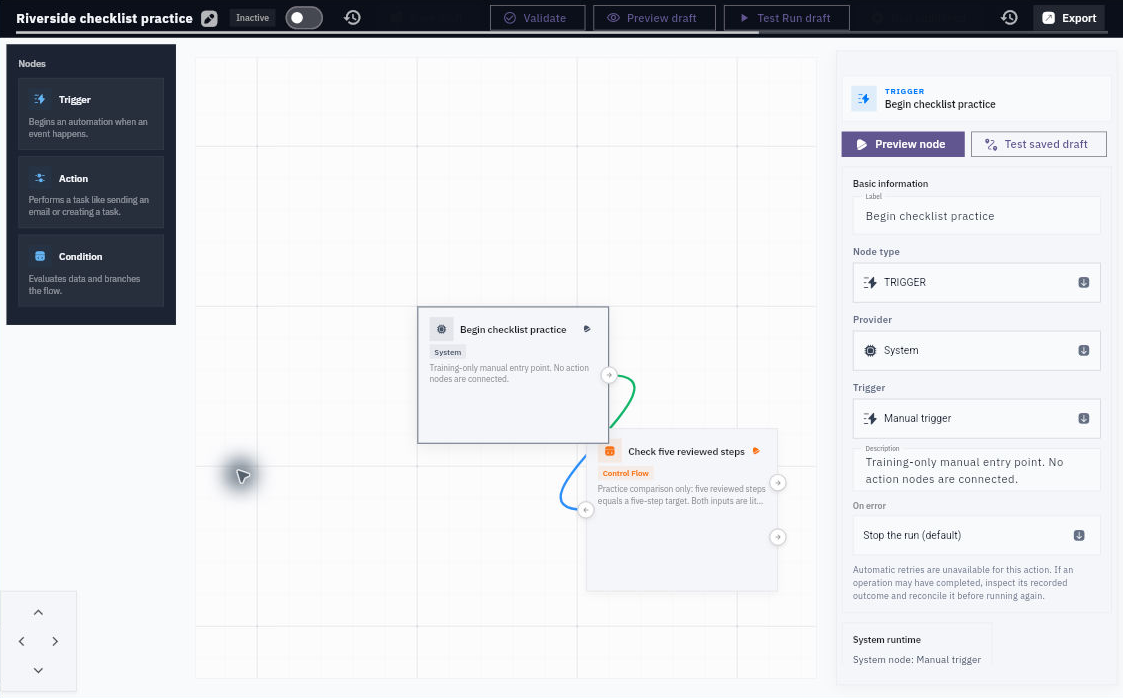
Entry configuration and error handling
Read the entry node
Select the trigger and inspect Node type: TRIGGER, Provider: System and Manual trigger. Basic information includes Label and Description. On error shows Stop the run (default). Allow other workflows to call this trigger is a separate entry permission; the illustrated case leaves it off with no caller inputs.
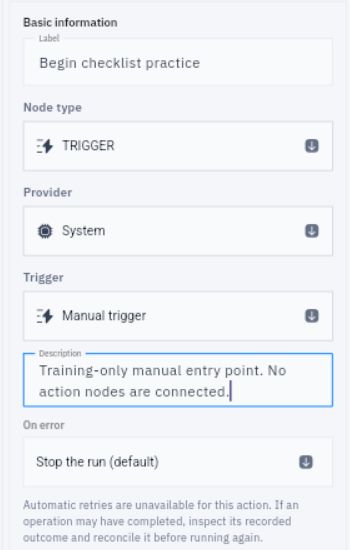
Caller input and graph review
Manual means deliberate invocation, not an automatic daily schedule. Allowing callers widens how the workflow can start. A caller-input contract would need supported fields, types, requiredness and missing-value behavior. The existence of the switch does not establish a configured, authorized caller.
Do not add a schedule, webhook, credentials or provider connection to make a literal lesson feel realistic. Each introduces a new effect or entry boundary requiring its own review.
Recognize consequence-bearing controls
The builder exposes Preview draft, Test Run draft, Validate, Run History, Export, Import, Releases and Deploy. Visibility is not proof every operation is available or tested. Reading a graph, saving it, simulating it, testing it and enabling future starts are separate activities.
Most importantly, Inactive does not make every Test Run harmless. A draft containing an action can still change records or contact providers when tested. Do not run an unknown node to find out what it does.
Check the design before continuing
The approved learning graph has two nodes, one connection and no actions. If a candidate adds “send reminder” on the true branch or a daily schedule, it is outside the stated scope even if the equality logic is correct. Remove those effects from the proposed design and return them for a separate business decision.
You should be able to explain the start, every input, the condition, both branch destinations and all possible effects. If any is unclear, stop at inspection or a written plan rather than starting a run.
Turn what you learned into the way the team works.
Mark this lesson complete once the workflow exists in your workspace—not simply when you reach the bottom.