Desk course 01 — Understanding Desk and capturing a complete request
Desk keeps a service request, its handling, conversation, supporting work and disposition together. A ticket is not finished merely because somebody wrote an answer or changed its state. This course follows a simple fictional request: a welcome guide tells a learner to bring “the usual materials,” and the requester needs the exact materials named before using the guide.
Part of Desk module course
In this lesson
Service requests and complete intake
Desk keeps a service request, its handling, conversation, supporting work and disposition together. A ticket is not finished merely because somebody wrote an answer or changed its state. This course follows a simple fictional request: a welcome guide tells a learner to bring “the usual materials,” and the requester needs the exact materials named before using the guide.
In this chapter
- Choose the service and the right launcher
- Preserve the full issue, not just a title
- Inspect routing and audience before Create
- Retrieve the same ticket independently
- Check your intake result
Choose the service and the right launcher
Open Desk and confirm the workroom and Select Desk. A same-named service in another workroom is a different context. Use Tickets for individual requests, Overview for summaries and Config for service definitions.
To capture a request, use Tickets > + New ticket. The desk-level + New launcher opens Create desk, not a ticket. Check the heading before entering anything. In the ticket composer, Desk assignment > Select desk identifies the service that should own the request; a prefilled value still needs checking.
Use an authorized training service or read-only study. A fictional requester label does not authorize a message to a real person, and a visible configuration control is not permission to change the service.
Preserve the full issue, not just a title
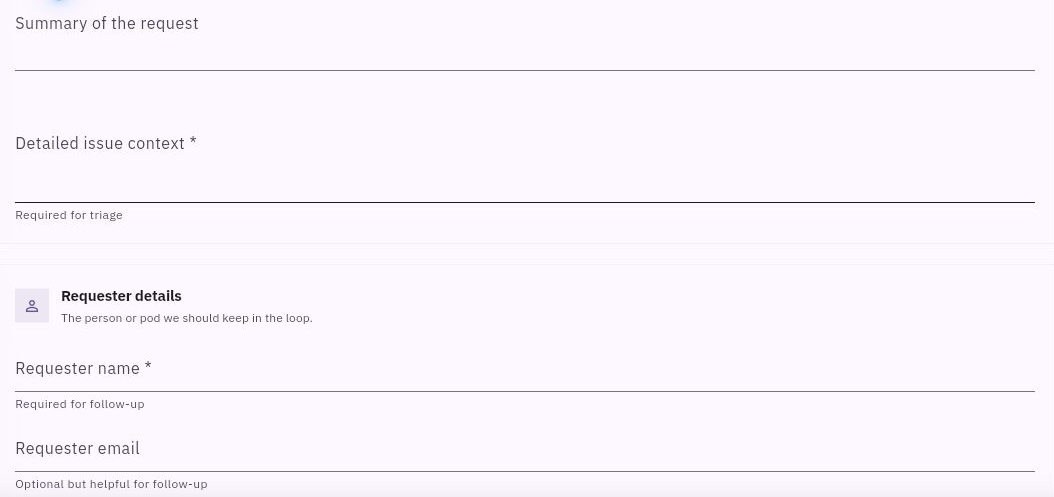
The composer separates Issue overview, Requester details, Routing & expectations, Custom fields, Attachments and Signals/watchers. Scroll through the complete form before submitting.
| Field | What belongs here | Important distinction |
|---|---|---|
| Issue title | A short, specific statement such as “Clarify materials in welcome guide” | Required for routing; not a replacement for context |
| Summary of the request | A concise optional overview | Separate from the full issue |
| Detailed issue context | Original request, exact source/version, observed problem, expected result and limits | Required for triage |
| Requester name | The verified approved requester identity or authorized practice label | Required for follow-up |
| Requester email | The approved destination when this route needs one | The manual form labels it optional; do not invent an address |
| Channel | The displayed intake classification | Omni inbox does not prove an email arrived |
Classification and routing decisions
For the example, the complete context can be: “Training only. Welcome guide version 1 says: ‘Bring the usual materials. Start by drawing Output, Owner and Check boxes.’ The requester cannot identify the materials. The approved materials are one sheet of paper and a pen. Replace only the ambiguous materials phrase, preserve the starting action, and ask the practice requester to confirm that the revised text is usable. No live workshop or customer data is involved.”
This gives a handler the source, defect, approved correction and finish condition without a separate workbook. Do not replace an unknown expected result with a guess; ask for the missing information and preserve the original wording.
Inspect routing and audience before Create
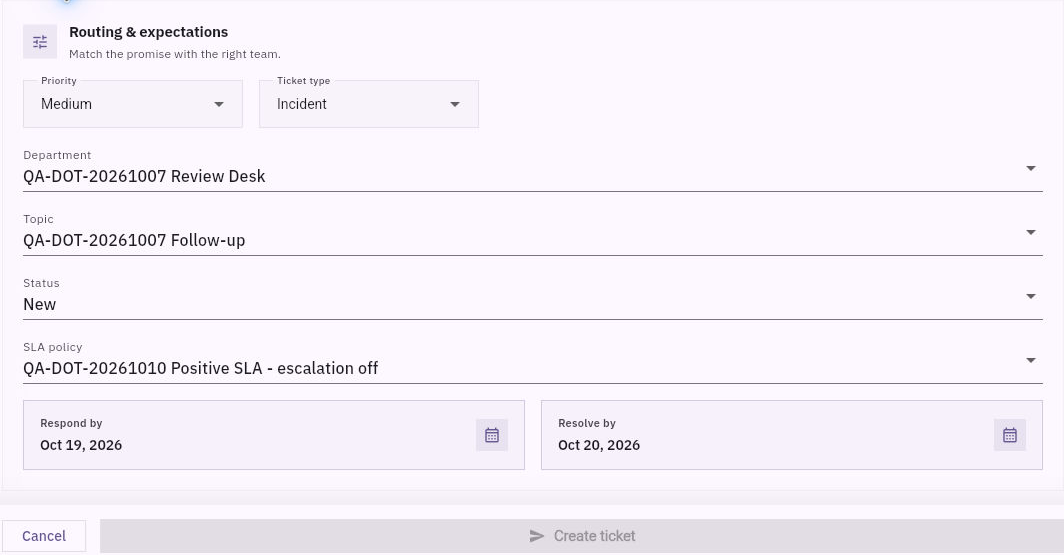
Routing & expectations includes Priority, Ticket type, Department, Topic, Status, SLA policy, Respond by and Resolve by. The observed type choices are Incident, Request, Change, Question and Training. Choose based on the service's definitions, not merely the default. A Training choice does not by itself suppress communications or other effects.
Attachments creation and first readback
Optional custom fields may be blank even when a selector opens on a highlighted option. A highlight is not a selected saved value. Attachments has Add attachments; choosing a file can transmit it, so verify the exact file and approved audience first. Signals/watchers can include a prefilled account chip below the initial viewport. Do not overlook that lower section or add watchers as an incidental part of intake.
Review all intended values and the complete body, then use Create ticket once only within authorized practice. Creation is an intake milestone, not assignment, response or resolution.
Retrieve the same ticket independently
Return to Tickets, use Table or Kanban where available, and open the exact candidate. Match the reference, full title, requester, desk and complete context. Keep the actual native reference when shown; your own practice title is not a substitute.
If an exact-reference search returns nothing, clear only your temporary search and inspect the settled list before concluding that creation failed. Do not create a duplicate just because a search result or success response is uncertain.
Check lower fields and the full detailed context, not just the header. When opening Edit ticket, compare prefilled values with the retained detail before saving: an inspected example displayed substituted context and a different type in its editor. Cancel if values would overwrite the verified body. Do not assume an unchanged-looking editor is harmless.
Check your intake result
A successful intake check establishes one identified request with its complete context under the intended service. It does not establish a handler, a delivered response, a corrected guide or requester acceptance. Carry those outcomes into the next chapters as explicit work rather than reading them into the ticket's existence.
Turn what you learned into the way the team works.
Mark this lesson complete once the workflow exists in your workspace—not simply when you reach the bottom.