Inbox course 01 — Navigate mailboxes and understand the incoming request
Inbox brings incoming mail, outgoing preparation and calendar planning into one module. Before deciding what to do, identify the correct mailbox and read the actual request. A folder count, short preview or automated summary is not a substitute for the message and its later corrections.
Part of Inbox module course
In this lesson
Mailbox scope folders and search
Inbox brings incoming mail, outgoing preparation and calendar planning into one module. Before deciding what to do, identify the correct mailbox and read the actual request. A folder count, short preview or automated summary is not a substitute for the message and its later corrections.
Use only mail you are permitted to read. Opening a message can change its unread state. If that state must remain untouched, use an approved training example or supplied text rather than opening live mail for practice. The illustrations here show controls only, not private mailbox content.
In this chapter
- Find the operating context
- Distinguish Business Email setup from reading mail
- Understand the folders and attention views
- Search for the exact message
- Extract the request before choosing an action
- Distinguish triage from completion
- Practise a current-request decision
Find the operating context
Check the workroom, then open Inbox → Mail. Read the selected mailbox scope. Unified is a displayed scope, not proof that every organisational account is connected or that every user sees the same mail. An account identifies the connected service and sender; a mailbox contains associated mail; the workroom is the wider operating context.
The module navigation includes Mail, Calendar, Accounts, Settings, Business Email and Compose. Accounts and Add Account are configuration entry points, not prerequisites for reading an already connected mailbox. Do not add an account or use Sync now solely to make a training example appear.
Before relying on a message, inspect its actual From and recipient headers. A familiar display name can represent a different address. The workroom name alone does not establish which sending account will be used for a later reply.
Distinguish Business Email setup from reading mail
The Inbox navigation's Business Email entry is separate from the Mail view you use to handle messages. The administrator route also appears in Workroom Settings → Business Email, where Email Accounts can report Connect a domain first and show Add Account unavailable. A connected workroom member is not automatically a provisioned mailbox.
For setup questions, use Workroom Settings → Domain & DNS with the authorised administrator. Domains & DNS lists domain state and separates three choices: Buy Domain registers a new name; Use Existing keeps the current DNS provider; Connect delegates nameservers. Choose from the organisation's approved domain-management decision, not from whichever card is selected by default. Delegating nameservers can affect the existing website and mail service as well as the proposed mailbox.
Automatic Business Email provisioning and Broadcast Email setup are separate settings. A provisioning switch being on is not evidence that an account exists or can send and receive. Workroomly Sender Email Credit, shown under Billing, concerns bulk CRM broadcasts rather than creating professional team mailboxes. Buying sender credit does not resolve a missing domain or mailbox.
Prepare the exact domain, mailbox names and owners, current DNS/mail providers and continuity requirements for the administrator. Keep credentials out of the handoff. Follow the Settings course for configuration responsibilities; do not purchase a domain, change DNS or connect another account just to complete this Mail exercise. Operational readiness requires the retained approved domain/mailbox configuration and an authorised send-and-receive check, not only a visible setup button.
Understand the folders and attention views
Inbox is the incoming-mail view. Drafts contains candidate unsent work. Sent is a place to inspect submitted outgoing items. Archive and Trash are different retention locations. Starred and Needs Reply are attention views. Spam and Other are also available in the illustrated navigation.
A Drafts count does not show whether a complete body survived. Needs Reply does not prove every other request is resolved. A star helps you find an item; it is not a new instruction from the sender. A message can require action while its attention flag is off, or be informational while starred.
Do not move mail just to explore these concepts. Archiving, marking spam and deleting change state or findability. Their names alone do not establish a retention period or a guaranteed recovery path.
Search for the exact message
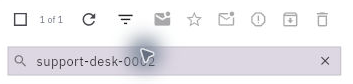
In Mail, use Search emails, enter a distinctive reference or subject term and press Enter. Wait for the list to settle. Check the selected scope and any filters before treating an empty result as absence.
Current requests and deliberate triage
Open the intended result and compare the full subject, sender, recipients and date. A shortened preview can omit a correction or qualifier. Read numeric dates as displayed; do not infer a regional date convention or deadline from an ambiguous date string alone.
A message is one item. A conversation can contain the original request, replies, corrections and withdrawal. Read enough of the relevant exchange to identify the current instruction. Do not assume that the newest snippet contains the whole request or that the oldest message remains authoritative after a correction.
If the original asks for version A and a later message says “use version B,” carry version B into your response. Do not rewrite the original history; explain the current scope and retain the correction.
Extract the request before choosing an action
Identify the requested output, material/version, deadline, intended recipient and any explicit limits. “Review the agenda and tell me whether it includes a recap” is different from “revise the agenda.” A message asking for review does not authorise a meeting booking, purchase or disclosure of an attendance list.
Use a short private working note when helpful: request, source material, timing, decision needed and unanswered question. Keep unnecessary personal details out of the note. If the requested material is missing, ask for that precise input rather than pretending to review it.
Read the body before relying on AI Insights or a summary. An automated suggestion to follow up does not override a message that explicitly says no reply is needed. A summary calling a message informational does not erase a clear review request. Use assistance as a prompt to inspect, not as the final source of authority.
Distinguish triage from completion
Message controls can include Mark as unread, Star, Mark Needs Reply, Mark as spam, Archive and Delete. The more-actions menu includes Reply, Reply All, Forward, Archive and Delete. Each action serves a different purpose.
Marking Needs Reply is an attention decision; it does not send the reply or assign someone to write it. Mark as unread can preserve an attention cue but does not undo having read the message. Archive can remove an item from the current working view without proving the business obligation is complete. Delete is not a substitute for resolving a request.
For an authorised triage change, confirm the exact item, use the intended control once and inspect the resulting state in the appropriate view. If you are only learning the screen, leave the item unchanged. You do not need to toggle every control to understand its purpose.
Practise a current-request decision
Consider two fictional messages. The first asks you to review a 30-minute agenda and check for a recap, then a correction says to use version B rather than A. The second is a system notice saying no reply or task is required, despite being starred.
Your next action is to review version B against the stated requirement and preserve the deadline. The system notice remains informational. Neither its star nor a summary creates extra work. If a third message asks for a personal attendance list without a clear purpose or verified destination, resolve that sharing authority before disclosing it.
Your expected result is an accurate understanding of the current request in the right mailbox, with a deliberate next action. No outgoing message, completed review or accepted task exists merely because you found and read the mail.
Turn what you learned into the way the team works.
Mark this lesson complete once the workflow exists in your workspace—not simply when you reach the bottom.