Chat course 04 — Work with team conversations and message actions
Team conversations bring a defined audience into a shared discussion. Message actions help organise or respond to an exact item, but forwarding, membership changes and deletion can affect other people. This chapter explains the current team form and message-action controls so you can choose the operation deliberately without assuming that a visible option has already produced its result.
Part of Chat module course
In this lesson
Shared team purpose and creation
Team conversations bring a defined audience into a shared discussion. Message actions help organise or respond to an exact item, but forwarding, membership changes and deletion can affect other people. This chapter explains the current team form and message-action controls so you can choose the operation deliberately without assuming that a visible option has already produced its result.
In this chapter
- Choose a team conversation for a shared purpose
- Inspect team membership without widening access
- Use the action attached to the exact message
- Review forwarding and deletion as consequential choices
- Keep Huddles and material controls separate
- Practise a team-message decision
Choose a team conversation for a shared purpose
In Chat, TEAMS and DIRECT MESSAGES are separate sidebar sections. Use a direct conversation when the request belongs with one verified person. Use a team conversation when the purpose genuinely needs the shared audience and the intended members are authorised to receive the material.
Search for an existing appropriate team before creating a duplicate. A team name describes purpose, not necessarily privacy. Check the actual audience rather than assuming that “Leadership” or “Private project” restricts membership in a particular way.
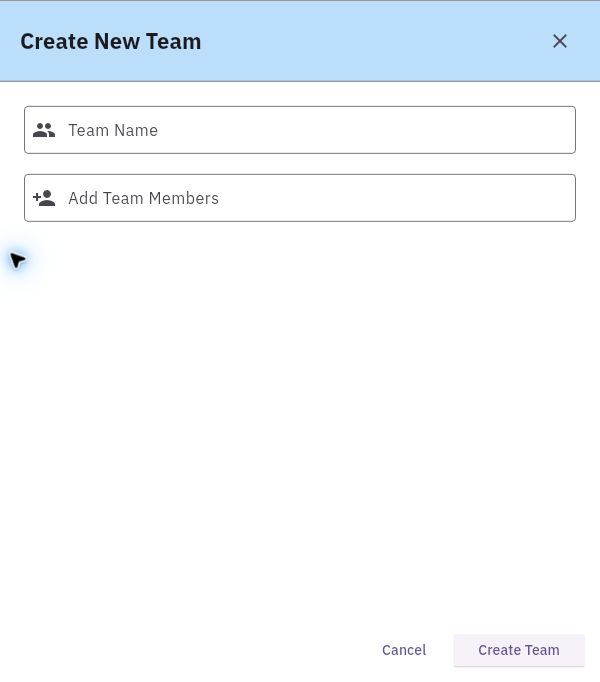
The plus beside TEAMS opens Create New Team, which is different from + New → New Chat for finding a direct recipient. The team form contains Team Name, Add Team Members, Cancel and Create Team.
Audience verification and member management
Choose a name colleagues can distinguish from other discussions. Use Add Team Members only for the actual approved people; verify full identities rather than matching first names. The displayed form does not include an inspected public/private selector, so do not invent a visibility choice or infer that a new team is public or private by default.
For inspection, choose Cancel. For an authorised creation, review the name and complete intended member selection before Create Team, then independently reopen the resulting team and verify its actual audience. A successful form submission alone would not establish every person's access or acceptance of a task.
Inspect team membership without widening access
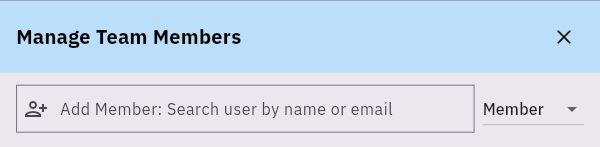
An open team header provides Manage Members alongside Messages, Media and Pins. Manage Team Members exposes Add Member: Search user by name or email and a selector currently labelled Member.
Exact-message reply and organisation
The identity search and role selector answer different questions: who is being considered, and what role is selected. Read the actual available choices and permissions before changing a role; the Member label alone does not define every capability. Do not assume that a person already in the workroom belongs in every team discussion.
Adding someone can expose information to a new audience. Confirm the purpose, existing content and approved scope first. Do not use membership changes to bypass a denied file or conversation access check. After an authorised change, verify the retained membership and the appropriate receiving access separately. A new name in a list is not proof that the person read prior discussion or agreed to perform work.
Use the action attached to the exact message
The current message actions include Reply in thread, React, Forward and More. Identify the exact message and material version before choosing an action. A response attached to the wrong message can confuse which request or revision is being discussed.
Reply in thread is the entry point for a response associated with that message. Inspect the resulting context and composer before sending; the button's presence does not establish the full reply editor, notification behaviour or delivered response. React is an acknowledgment or expression through its supported choices, not necessarily approval of the entire request.
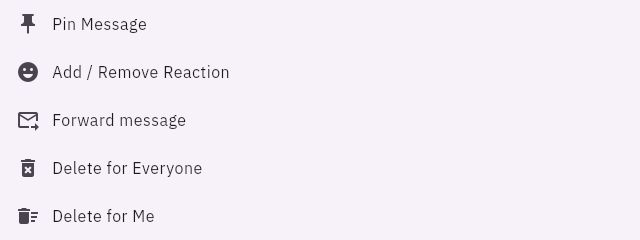
More opens a menu containing Pin Message, Add / Remove Reaction, Forward message, Delete for Everyone and Delete for Me.
Forwarding deletion and live communication boundaries
Pin Message is an organisational action related to the Pins area. A pin can help draw attention to a reference, but it does not make the content correct or current. Before relying on a pinned plan, read its version and any later correction. After an authorised pin, inspect the resulting Pins view rather than assuming the action persisted.
Add / Remove Reaction changes a reaction state. Do not translate an emoji into an accepted deadline or review decision unless the team's explicit convention and context support that meaning. For an important commitment, ask for clear words describing scope and timing.
Review forwarding and deletion as consequential choices
Forward and Forward message move content toward a new audience through the supported destination flow. Inspect the full content, original context, intended recipient and any linked material before committing. Permission to read a team message does not automatically include permission to disclose it outside that team.
Delete for Me and Delete for Everyone explicitly name different scopes. Choose neither as a way to mark a request complete. Read the current confirmation and authority requirements before any deletion, and do not assume the action is reversible or removes every retained copy or external notification. Preserve business records according to the team's policy.
No Edit action appears in the inspected More menu. If you need to correct a misleading message, use a currently supported authorised route and make the correction's relationship to the original clear. Do not invent an edit procedure or delete shared history merely to conceal an earlier mistake.
Keep Huddles and material controls separate
The team header also provides Start Huddle, Copy Huddle Link and Select Messages. Starting a huddle is a live-communication action; copying its link provides an entry route, not proof of access or attendance. Select Messages begins a selection mode, but read the actual subsequent options before assuming which bulk actions are available.
The composer has an attachment-style plus, but an icon alone does not establish an upload menu, supported file types or delivery behaviour. Use only the actual available labelled material route and verify the exact item and recipient access. Media and Pins remain separate views rather than promises that a file mentioned in text is present.
Practise a team-message decision
A team contains a draft plan and an older pinned version. A colleague asks you to forward the discussion to a new person and delete the old plan for everyone. First verify the new audience's authority, the actual current version and the reason for deletion. The useful action may be a clear correction and a reviewed reference, not forwarding the entire history or removing it.
Your expected result is a precise choice of team, audience and message action with a verification plan. Creating a team, reacting, pinning or copying a huddle link does not by itself establish a task assignment, approved revision or completed conversation.
Turn what you learned into the way the team works.
Mark this lesson complete once the workflow exists in your workspace—not simply when you reach the bottom.